Agreements
The Agreements module centralizes the documentation of all contractual commitments between the MSP and its clients. It combines manually entered agreements and those automatically synchronized from ConnectWise Manage into a unified view.
Overview
The Agreements module allows you to document and track service level agreements (SLAs), managed service contracts, block time, subscriptions, and any other contractual commitments with clients. The source of each agreement (manual or ConnectWise) is clearly identified, and modification rules vary depending on the source.
User Interface
Navigation
Access the module via: SmartDoc > Agreements
If a client company is selected in the active context, the list is filtered to show only that company's agreements.
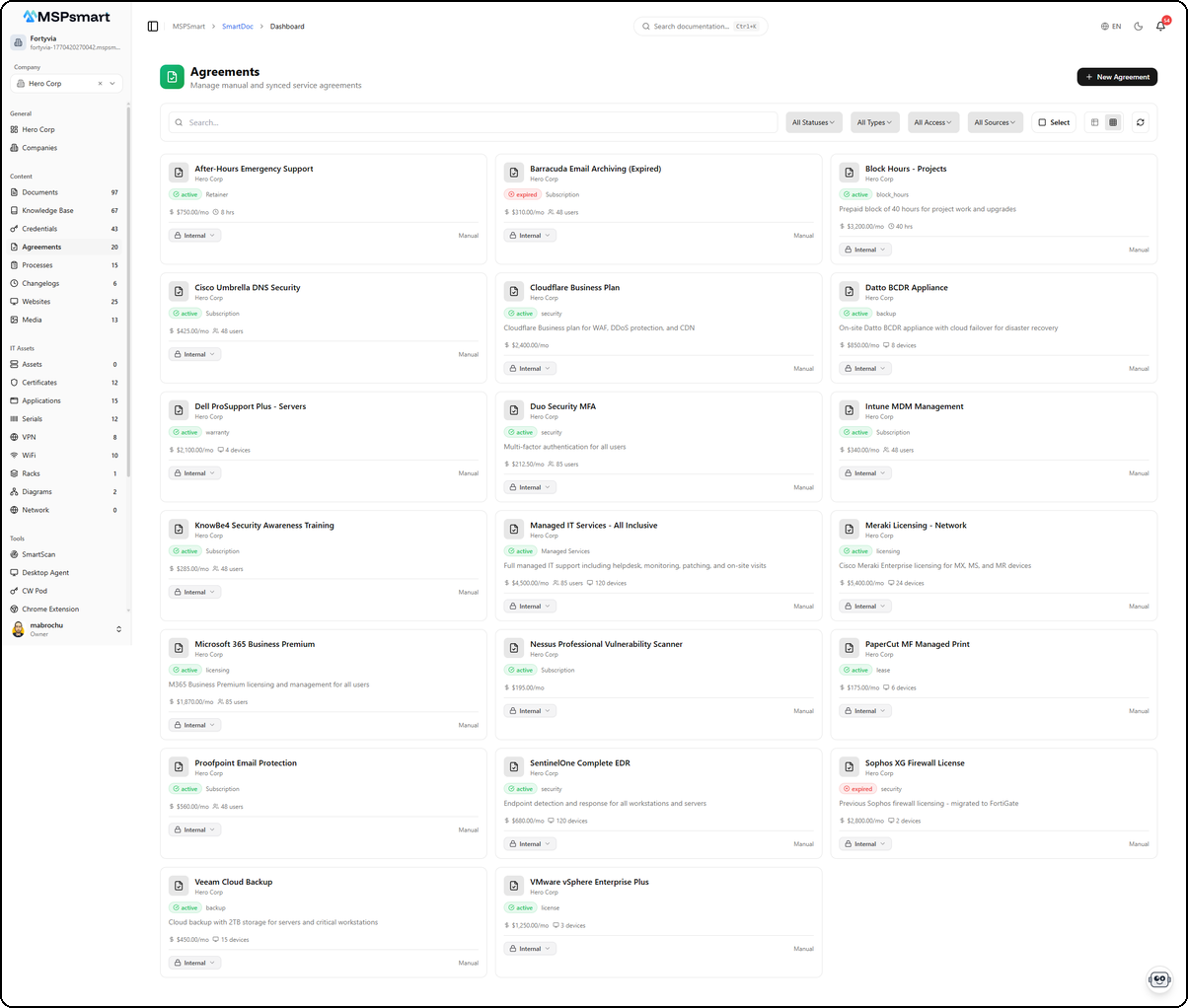
Card View
The card view displays each agreement as a card with:
- Name and associated company
- Badges for status (active in green, expired in red) and type (Subscription, security, backup, etc.)
- Description summary of the agreement
- Monthly amount (e.g., $4,500.00/mo)
- Coverage: number of hours, users, and devices covered
- Access level editable directly via dropdown (Internal/Client)
- Source: Manual or CW Sync
Table View
The table view provides a detailed display with the following columns:
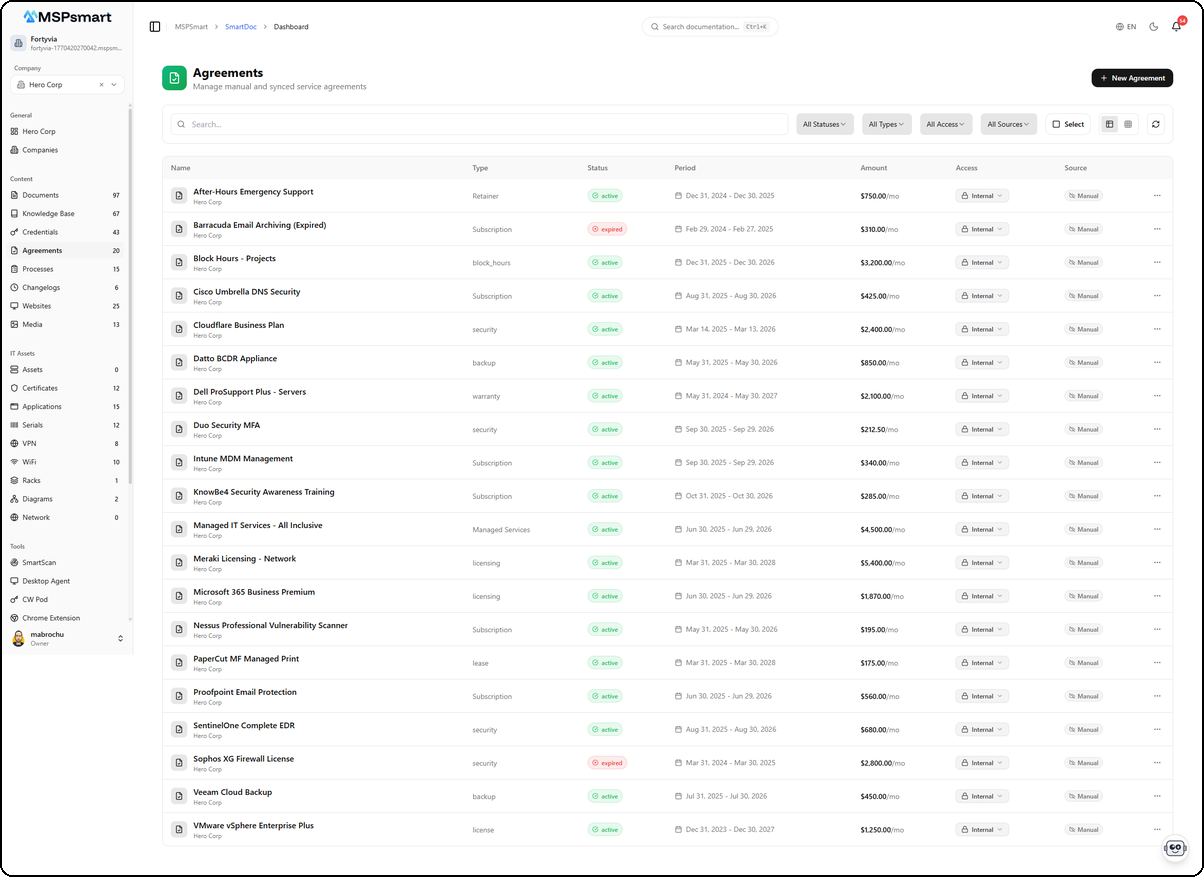
| Column | Description |
|---|---|
| Name | Agreement name and associated company |
| Type | Agreement type (Retainer, Subscription, security, backup, warranty, licensing, etc.) |
| Status | Colored badge: active (green) or expired (red) |
| Period | Start and end dates of the agreement |
| Amount | Monthly amount in dollars |
| Access | Access level editable via dropdown (Internal/Client) |
| Source | Manual or CW Sync with distinctive icon |
Available Filters
- Search — Search by name, description, or type
- All Statuses — Active, Expired, Inactive, Cancelled
- All Types — Dynamic filter based on types actually used
- All Access — Internal, Client
- All Sources — Manual, CW Sync, All
Toolbar Actions
- + New Agreement — Create a new manual agreement
- Select — Enable selection mode for bulk actions
- Refresh — Refresh the list
- Toggle between grid and table views
Agreement Detail
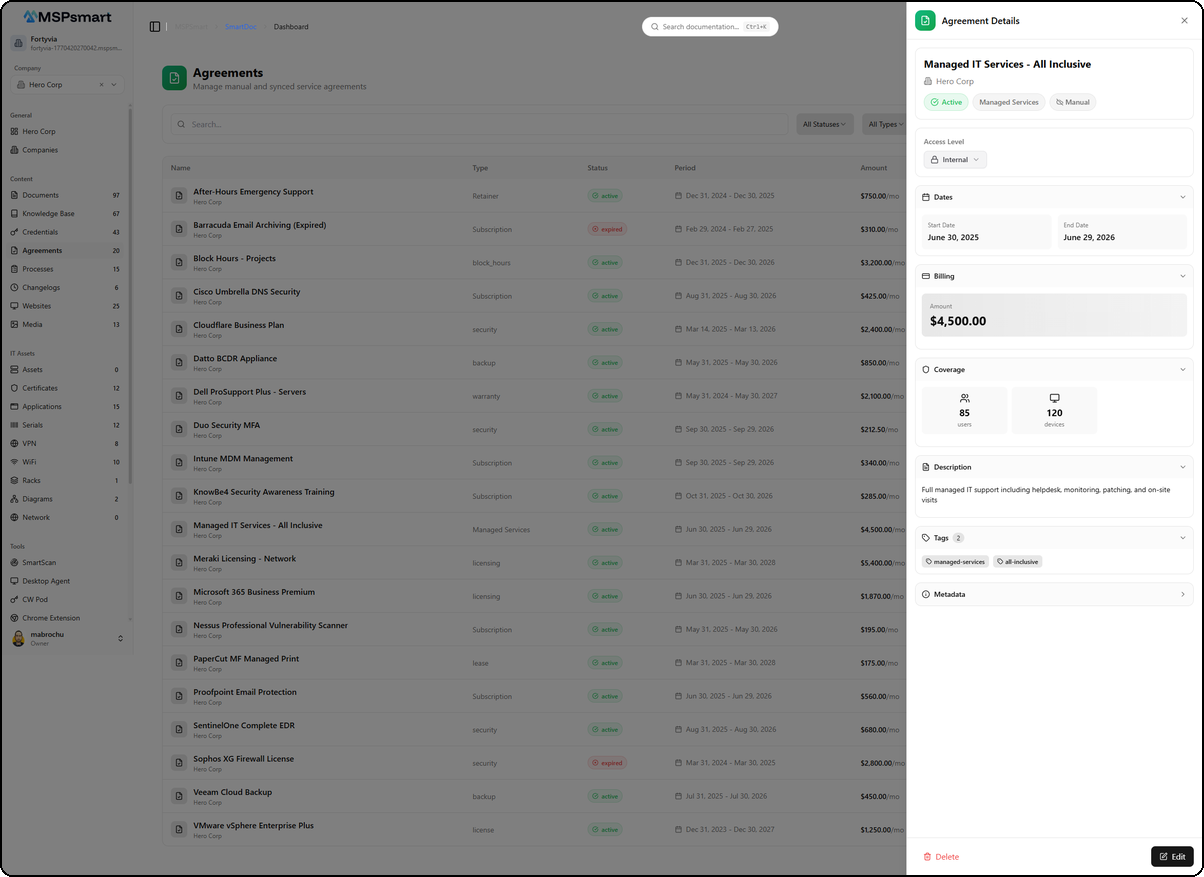
Clicking on an agreement opens a side panel displaying all detailed information in collapsible sections.
Header
The panel header displays:
- The full name of the agreement (e.g., Managed IT Services - All Inclusive)
- The associated company (e.g., Hero Corp)
- Badges: status (Active), type (Managed Services), and source (Manual)
Access Level
The access level can be changed directly from the detail panel via a dropdown (Internal or Client).
Dates
| Field | Description |
|---|---|
| Start Date | Agreement effective date |
| End Date | Planned expiration date |
Billing
The Billing section displays the monthly amount of the agreement in currency format (e.g., $4,500.00).
Coverage
The Coverage section indicates the scope of the agreement with visual indicators:
- Users — Number of covered users (e.g., 85 users)
- Devices — Number of covered devices (e.g., 120 devices)
- Hours — Number of included hours (for block time agreements)
Description
Detailed description of the agreement (e.g., "Full managed IT support including helpdesk, monitoring, patching, and on-site visits").
Tags
Labels for organization and filtering (e.g., managed-services, all-inclusive). Tags appear as clickable badges.
Metadata
Collapsible section containing additional technical information: ConnectWise identifier, creation/modification dates, etc.
Actions
At the bottom of the panel:
- Delete — Delete the agreement (manual agreements only)
- Edit — Edit the agreement
Agreement Types
SmartDoc recognizes the following agreement types:
| Type | Description |
|---|---|
| Managed Services | Managed services (MSP) |
| Retainer | Monthly retainer / emergency support |
| Subscription | Software/service subscription |
| block_hours | Prepaid block of hours |
| security | Security contract |
| backup | Backup contract |
| warranty | Hardware warranty |
| licensing | Software licensing |
| lease | Equipment lease |
| license | Perpetual license |
| other | Other type |
Types sourced from ConnectWise are automatically used as-is (e.g., Time and Materials, Block Hours).
Agreement Statuses
| Status | Badge | Description |
|---|---|---|
| active | Green | Agreement in progress |
| expired | Red | Expired agreement (visible in the list for reference) |
| inactive | Grey | Agreement suspended |
| cancelled | Red | Agreement cancelled |
Agreements synchronized from ConnectWise inherit the ConnectWise status, converted to lowercase.
Agreement Sources
Manual Agreements
Created directly in SmartDoc via the + New Agreement button. All fields are editable and the agreement can be freely deleted.
Manual agreements are identified by the Manual badge in the Source column.
ConnectWise Synchronized Agreements
Automatically extracted from the ConnectWise synchronization cache. They appear as soon as a CW synchronization has taken place.
Synchronized CW agreements:
- Are identified by the CW Sync badge (blue icon) in the Source column
- Display ConnectWise data (name, type, dates, status)
- Cannot be deleted from SmartDoc (deletion must be done in ConnectWise)
- Retain the
cw_agreement_ididentifier that links directly to ConnectWise
Modification Rules
Modification rules vary depending on the agreement source:
Manual Agreements
All fields are editable:
- Identification, type, status
- Dates, amount, currency, coverage
- Description, notes, tags
- Access level
Synchronized Agreements (CW)
Only three fields can be modified on a CW agreement:
- Access level (
access_level) - Notes (
notes) - Tags (
tags)
When a user modifies these fields on a CW agreement, the system automatically creates an override record in the database to store these customizations, without altering the source data from ConnectWise.
Bulk Actions
In selection mode (Select button), the following actions are available on multiple agreements simultaneously (up to 100):
| Action | Manual Agreements | CW Agreements |
|---|---|---|
| Change access level | Yes | Yes |
| Change status | Yes | No |
| Add tags | Yes | Yes |
| Remove tags | Yes | Yes |
| Delete | Yes | No |
When the selection contains a mix of manual and CW agreements for an action not permitted on CW, a warning is displayed and only manual agreements are processed.
Access Levels
| Level | Admin Portal | Client Portal |
|---|---|---|
| Internal | Yes | No |
| Client | Yes | Yes |
The Client access level is only available if the agreement is associated with a client company. The access level can be changed directly from the table view or detail panel via the dropdown.
Bilingual Support (FR/EN)
Agreements support entry in two languages:
- name / name_fr — Name in English and French
- description / description_fr — Bilingual description
The interface automatically displays the language matching the user's preferences.