Credentials (Vault)
The Credentials module is an AES-256 encrypted vault for storing all client passwords, API keys, certificates, and secrets.
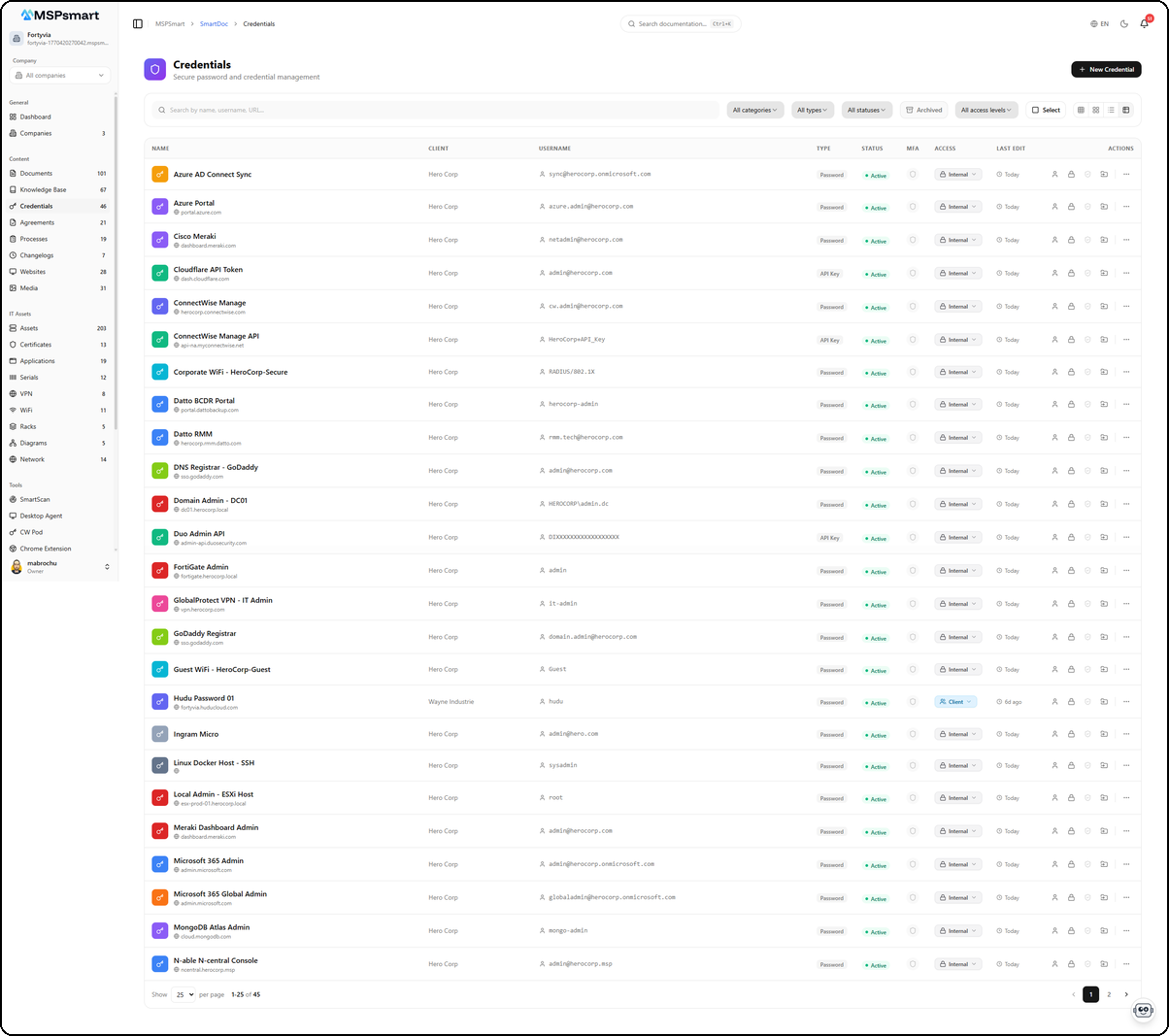
Credential Types
| Type | Usage |
|---|---|
| Password | Standard username/password pair |
| API Key | Third-party service access keys |
| Certificate | SSL/TLS certificates with files |
| SSH Key | Server access keys |
| OAuth | OAuth tokens |
| TOTP | 2FA seeds with real-time dynamic code display |
| Other | Any other type of secret |
Credential List
View Modes
- Table — Default view with sortable columns
- Grid — Visual cards (small, medium, large)
Filters
- Real-time search
- Filter by category, status, type, access level, company
- Configurable pagination (25 default)
Organization
- Categories with icons and colors (billing, hosting, software, etc.)
- Hierarchical folders
- Tags for cross-filtering
- Favorites — Pin frequently used credentials
Folder System
SmartDoc includes a dedicated folder system for credentials to organize your secrets by category. The sidebar panel displays the folder tree with customizable icons and colors.
Folder Tree

The tree displays:
- All items — Root view showing all credentials
- Folders with category-specific colored icons:
- Servers — Server credentials (blue icon)
- Cloud Services — Cloud service credentials (purple icon)
- Applications — Software credentials (orange icon)
- Network — Network equipment credentials (red icon)
- Folders can contain expandable subfolders
Create a Folder
The folder context menu (right-click) offers several actions:

| Action | Description |
|---|---|
| New subfolder | Create a subfolder inside the selected folder |
| Rename | Rename the folder |
| Customize | Customize the folder icon and color |
| Manage Access | Manage folder access permissions |
| Delete | Delete the folder |
The creation form lets you customize the folder:
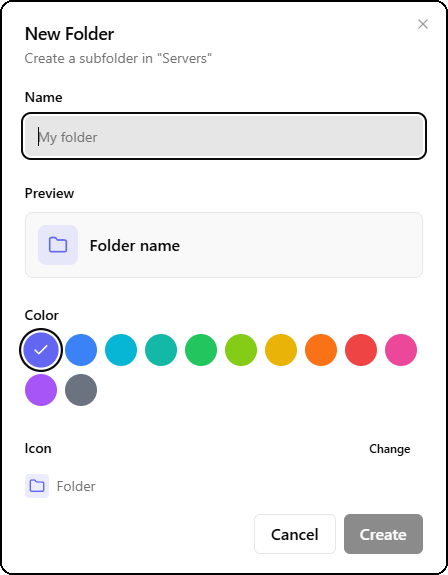
- Name — Folder name
- Preview — Real-time preview of the folder appearance
- Color — Choose from 12 colors (purple, blue, cyan, teal, green, lime, yellow, orange, red, pink, magenta, gray)
- Icon — Select a custom icon (default: folder icon)
Folder Access Control
Each folder can have group-based access restrictions. This controls who can view and edit credentials contained in a folder.
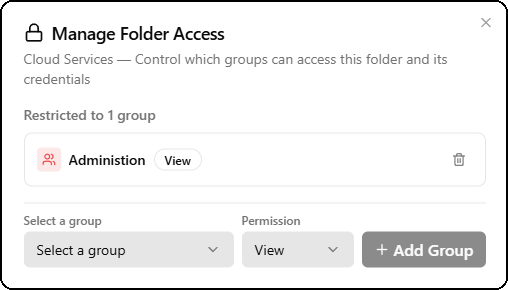
The Manage Folder Access window displays:
- The folder name and description (e.g., "Cloud Services — Control which groups can access this folder and its credentials")
- The number of groups with access (e.g., "Restricted to 1 group")
- The list of groups with their permission level (View or Edit) and a delete button
- A form to add a group: group selector, permission (View/Edit), + Add Group button
Credential Actions
Right-clicking or using the context menu (three dots) on a credential shows available options:

| Action | Description |
|---|---|
| View Details | Open the credential in read mode |
| Pin to Top | Pin the credential to the top of the list |
| Move to Folder | Move to another folder |
| Edit | Edit the credential |
| Archive | Archive the credential |
Move a Credential
The Move to dialog lets you move a credential to another folder:
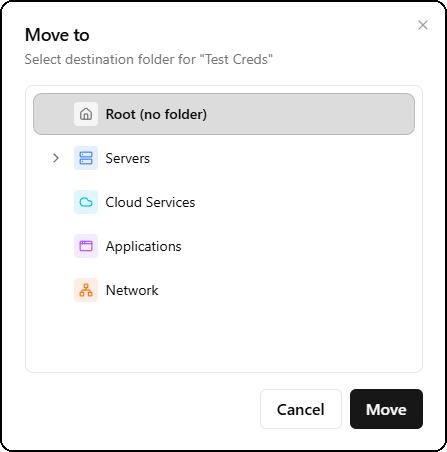
- Select the destination folder in the tree
- Root (no folder) moves the credential back to the root
- Click Move to confirm
Create a Credential
The + Create button opens a complete slide panel to enter all credential information.
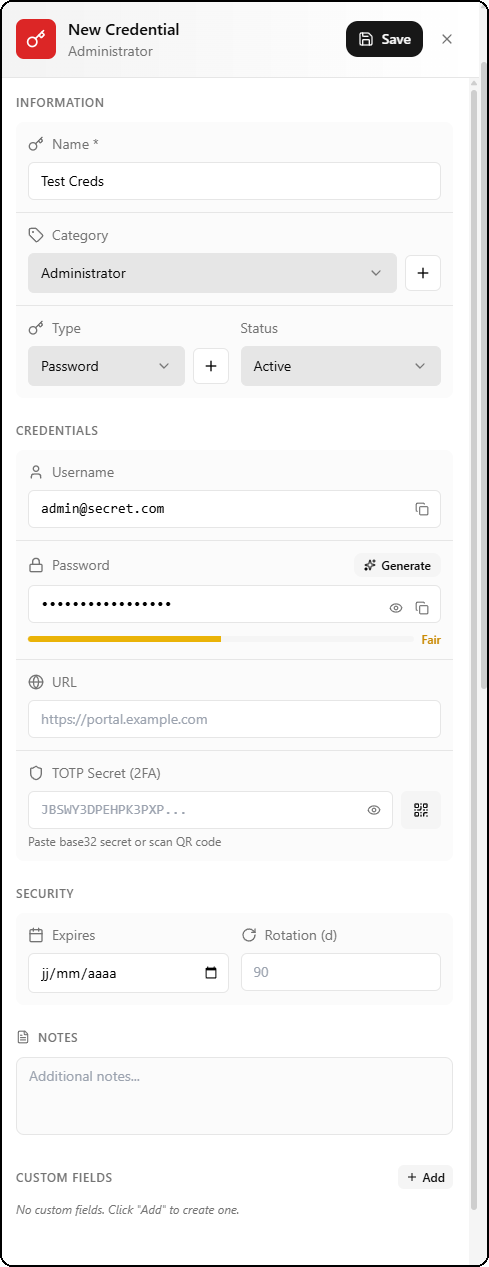
The form is organized in four sections:
Information
| Field | Required | Description |
|---|---|---|
| Name | Yes | Credential name |
| Category | No | Category with + button to create a new one (e.g., Administrator) |
| Type | No | Credential type (Password, API Key, Certificate, SSH Key, etc.) with + button |
| Status | No | Status: Active, Expired, Revoked, Archived |
Credentials
| Field | Description |
|---|---|
| Username | Username with copy button |
| Password | Masked password with strength indicator (Fair, Good, Excellent), reveal and copy buttons, and Generate link to open the password generator |
| URL | Login URL (e.g., https://portal.example.com) |
| TOTP Secret (2FA) | Base32 TOTP secret with QR code scan button |
Security
| Field | Description |
|---|---|
| Expires | Expiration date (dd/mm/yyyy format) |
| Rotation (d) | Rotation interval in days (e.g., 90 days) |
Notes and Custom Fields
| Field | Description |
|---|---|
| Notes | Free text area for additional notes |
| Custom Fields | Custom fields with + Add button to create new ones |
Password Generator
The Generate link in the creation form opens the built-in password generator.
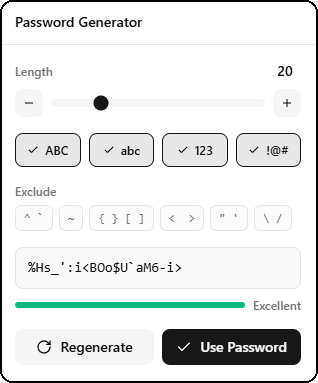
The generator provides full control over password generation:
| Option | Description |
|---|---|
| Length | Slider to set password length (1 to 128 characters) |
| ABC | Include uppercase letters (A-Z) |
| abc | Include lowercase letters (a-z) |
| 123 | Include digits (0-9) |
| !@# | Include special characters |
| Exclude | Exclude specific characters (e.g., ^ ~ { } [ ] < > " ' \ /) |
The generated password is displayed in real-time with a colored strength indicator:
- Weak (red) — Password too short or simple
- Fair (orange) — Average strength
- Good (yellow-green) — Good security
- Excellent (green) — Maximum security
Two action buttons:
- Regenerate — Generate a new password with the same settings
- Use Password — Insert the generated password into the form
Secure Operations
Reveal
- Explicit reveal action with audit logging
- Password strength indicator shown on reveal
- Optional Teams notification
- Automatic masking after delay
Copy
- One-click copy (username, password, URL)
- Copy tracking for security audit
- Visual confirmation
Access History
Each credential maintains a complete chronological log of all actions performed.
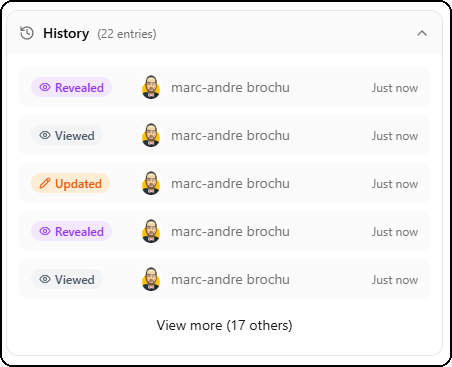
The History panel displays the total entry count (e.g., "22 entries") and the list of actions:
| Badge | Description |
|---|---|
| Revealed (red) | The password was revealed |
| Viewed (gray) | The credential was viewed |
| Updated (orange) | The credential was modified |
Each entry displays:
- A colored action badge
- The avatar and name of the user
- A relative timestamp (e.g., "Just now", "5 minutes ago")
The View more link at the bottom shows the complete history.
Password History
SmartDoc automatically maintains a history of all previous password versions.
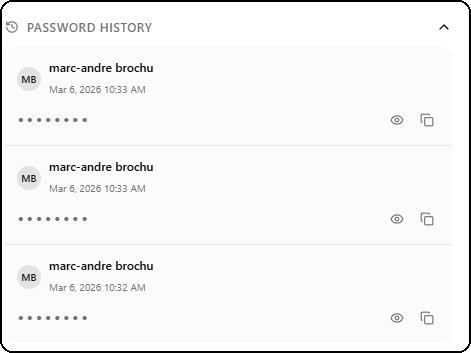
The Password History panel displays for each version:
- The avatar and name of the user who made the change
- The exact date and time of the change (e.g., "Mar 6, 2026 10:33 AM")
- The masked password with reveal and copy buttons
This feature allows you to:
- Recover a previous password if needed
- Verify rotation frequency
- Audit password changes
Secure External Sharing
Share a credential with a third party via an end-to-end encrypted secure link.
Share Form
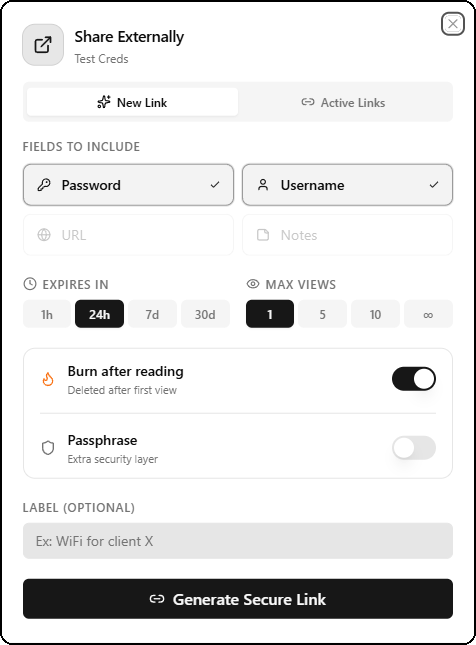
The Share Externally panel offers two tabs:
- New Link — Create a new sharing link
- Active Links — Manage existing active links
Fields to Include
Select which information to share with checkboxes:
- Password — Password (selected by default)
- Username — Username
- URL — Service address
- Notes — Additional notes
Security Options
| Option | Values | Description |
|---|---|---|
| Expires in | 1h, 24h, 7d, 30d | Link validity duration |
| Max views | 1, 5, 10, unlimited | Maximum number of views |
| Burn after reading | On/Off | Auto-destruct after first view |
| Passphrase | On/Off | Extra security layer with password |
The optional Label field helps identify the share (e.g., "WiFi for client X").
The Generate Secure Link button creates the encrypted link.
Secure Link Created
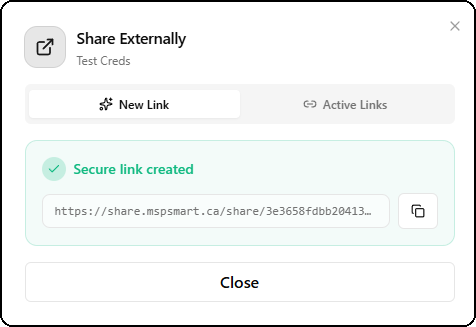
After generation, a confirmation is displayed with:
- A Secure link created badge (green)
- The secure link URL (e.g.,
https://share.mspsmart.ca/share/...) - A copy button to copy the link to clipboard
Public Share Page
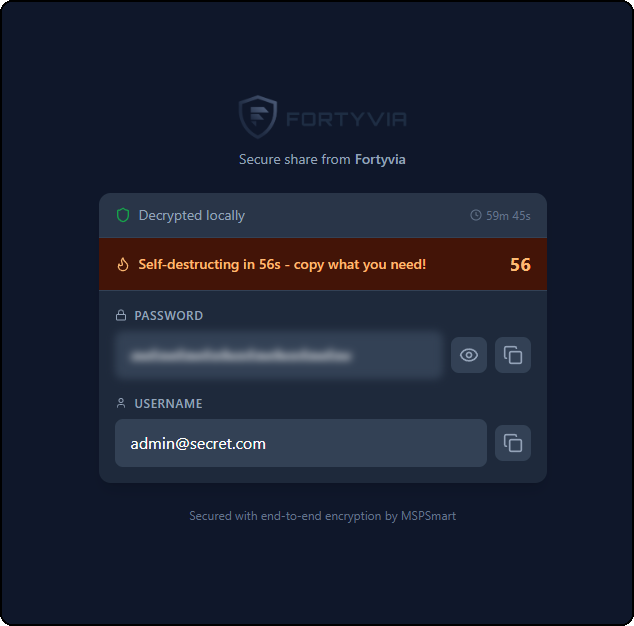
When a recipient opens the secure link, they access a dedicated page showing:
- The company logo and name (custom branding, e.g., "Fortyvia")
- A Decrypted locally badge confirming client-side decryption
- A countdown timer before link expiration (e.g., "59m 45s")
- A self-destruct banner with countdown in seconds (e.g., "Self-destructing in 56s - copy what you need!")
- The masked password with reveal and copy buttons
- The username in plain text with copy button
- The label "Secured with end-to-end encryption by MSPSmart"
Decryption happens entirely in the recipient's browser. The server never sees the password in plain text. Even MSPSmart cannot access the shared content.
Statuses
| Status | Description |
|---|---|
| Active | Currently in use |
| Expired | Past expiration date |
| Revoked | Manually disabled |
| Archived | Preserved but hidden by default |
Rotation and Expiration
- Configurable expiration date with alerts
- Rotation interval in days
- Last rotated timestamp
- Alerts visible on the global dashboard
Import
| Source | Description |
|---|---|
| CSV | Batch import with column mapping (name, username, password, URL, notes, category, type). Duplicate handling: skip, update, or create. |
| Hudu | Import from Hudu with automatic company matching |
Access Levels
- Internal — Visible only to MSP staff
- Client — Visible on the client portal