Documents / Knowledge Base
SmartDoc offers two content modules sharing the same editor, folder system, and AI tools:
| Documents | KB Articles | |
|---|---|---|
| Purpose | Internal technical documentation (servers, procedures, configurations) | Knowledge articles for quick reference and client sharing |
| Visibility | Internal by default, shareable via portal | Controlled by access level: Internal, Client, or Public |
| Metadata | Document type, company, pinned | Hierarchical category, featured, view counter, user feedback |
| Client portal | Manual sharing | Auto-published based on access level |
| Search | Full-text | Full-text + semantic search (RAG) for SmartBot |
| Access | Documents menu | Knowledge Base menu |
Both modules share the same rich editor (Slate), hierarchical folder system, AI tools (correction, formatting, translation), and template library. Only the metadata and visibility levels differ.
Create a Document or Article
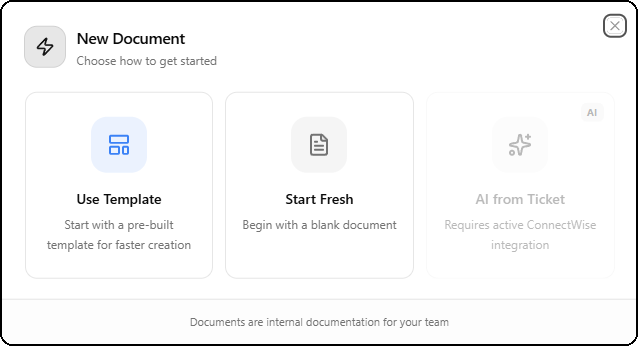
The + Create button opens a dialog offering three creation modes:
| Option | Description |
|---|---|
| Use Template | Start with a pre-built template for faster creation |
| Start Fresh | Begin with a blank document |
| AI from Ticket | Generate a document using AI from ConnectWise tickets (requires active ConnectWise integration) |
Documents are internal documentation for your team. KB articles can be shared with your clients through the client portal by adjusting the access level.
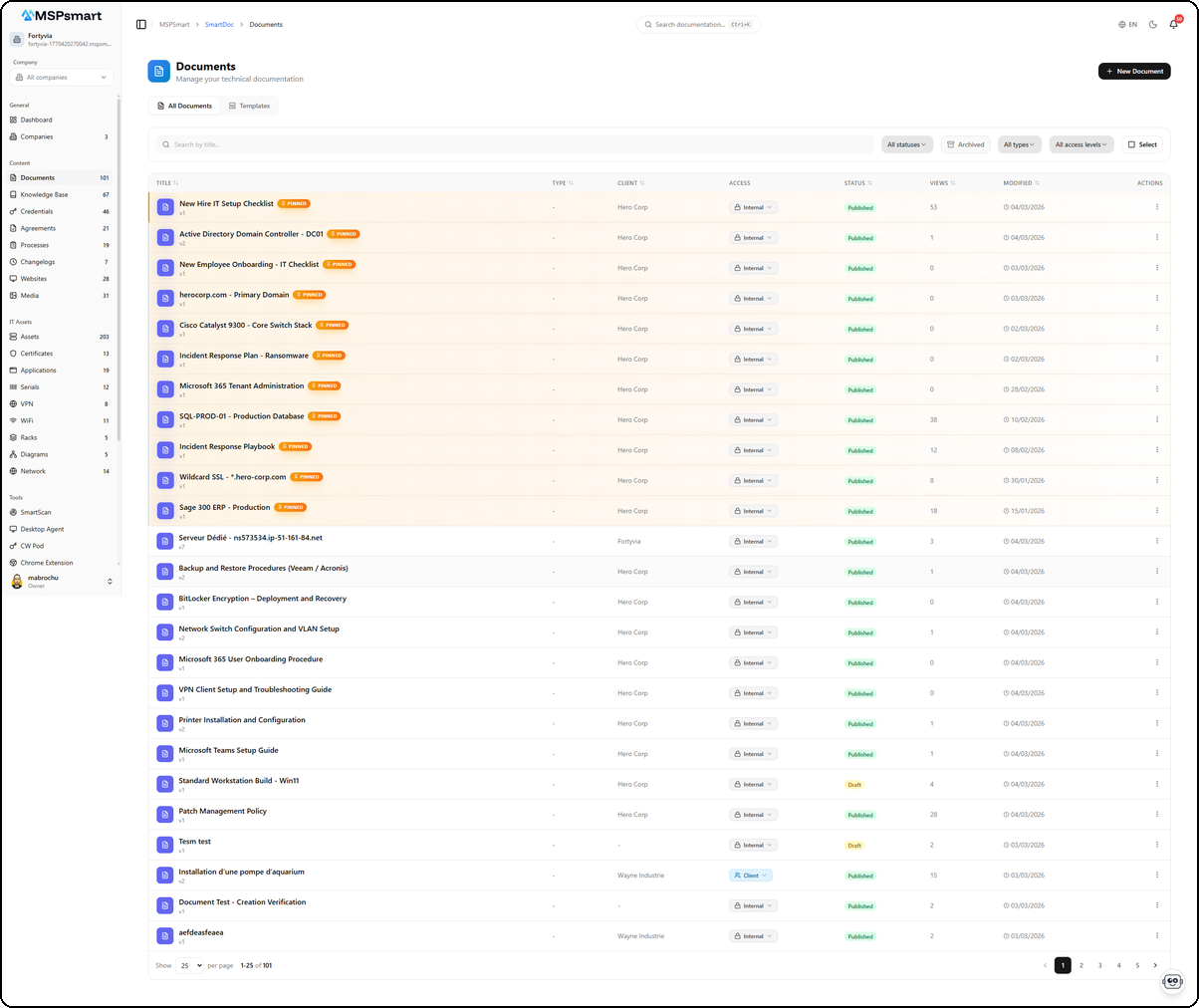
Document List
Filters and Sorting
- Search full-text in real-time
- Status: Draft, Published, Archived
- Document type: filter by custom type
- Access level: Internal, Client, Public
- Category: hierarchical category filter (KB)
- Company: filter by client
- Featured only: show highlighted articles (KB)
- Sort: by name, date, status, access level, view count
- Pagination: 25 items per page
Document Actions
Right-clicking or using the context menu (three dots) on a document shows available options:

| Action | Description |
|---|---|
| View | Open the document in read-only mode |
| Edit | Open the editor to modify the document |
| Unpin / Pin | Pin or unpin the document for quick access |
| Move to... | Move the document to another folder |
| Archive | Archive the document (soft delete) |
Bulk Actions
Select multiple documents for batch operations:
- Change status (draft / published / archived)
- Change access level
- Add or remove tags
- Move to folder
- Duplicate documents
- Delete (soft archive)
Folder System
SmartDoc includes a complete hierarchical folder system to organize your documents and KB articles. The sidebar panel displays the folder tree with customizable icons and colors.
Folder Tree
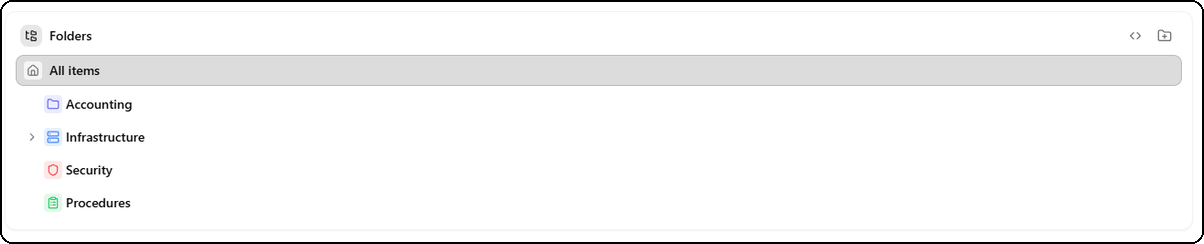
The tree displays:
- All items — Root view showing all documents
- Folders with customizable colored icons
- A parent-child hierarchy with expandable folders and subfolders
- Each folder can have its own icon and color for visual identification
Create a Folder
The folder context menu (right-click) offers several actions:
| Action | Description |
|---|---|
| New subfolder | Create a subfolder inside the selected folder |
| Rename | Rename the folder |
| Customize | Customize the folder icon and color |
| Manage Access | Manage folder access permissions |
| Delete | Delete the folder |
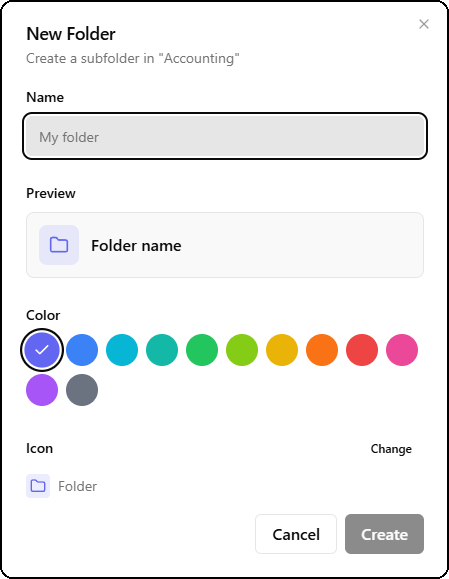
The creation form lets you customize the folder:

- Name — Folder name
- Preview — Real-time preview of the folder appearance
- Color — Choose from 12 colors (purple, blue, cyan, teal, green, lime, yellow, orange, red, pink, magenta, gray)
- Icon — Select a custom icon (default: folder icon)
Move a Document
The Move to dialog lets you move a document to another folder:
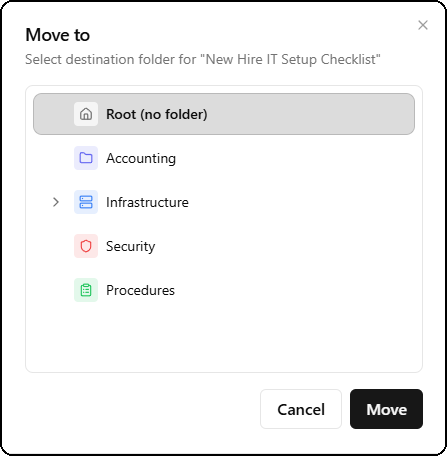
- Select the destination folder in the tree
- Root (no folder) moves the document back to the root
- Click Move to confirm
Folder Access Control
Each folder can have group-based access restrictions. This controls who can view and edit documents and credentials contained in a folder.
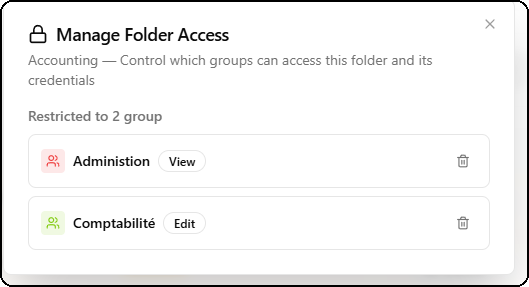
The Manage Folder Access window displays:
- The number of groups with access (e.g., "Restricted to 2 groups")
- The list of groups with their permission level:
- View — Read-only access
- Edit — Read and write access
- A delete button to remove a group's access
Add a Group
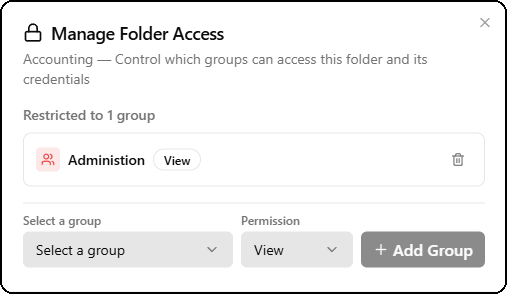
To add a new group:
- Select a group from the Select a group dropdown
- Choose the permission level (View or Edit)
- Click + Add Group
This feature is essential for MSPs who need to isolate documentation by department or team while sharing the overall folder structure.
Document Editor
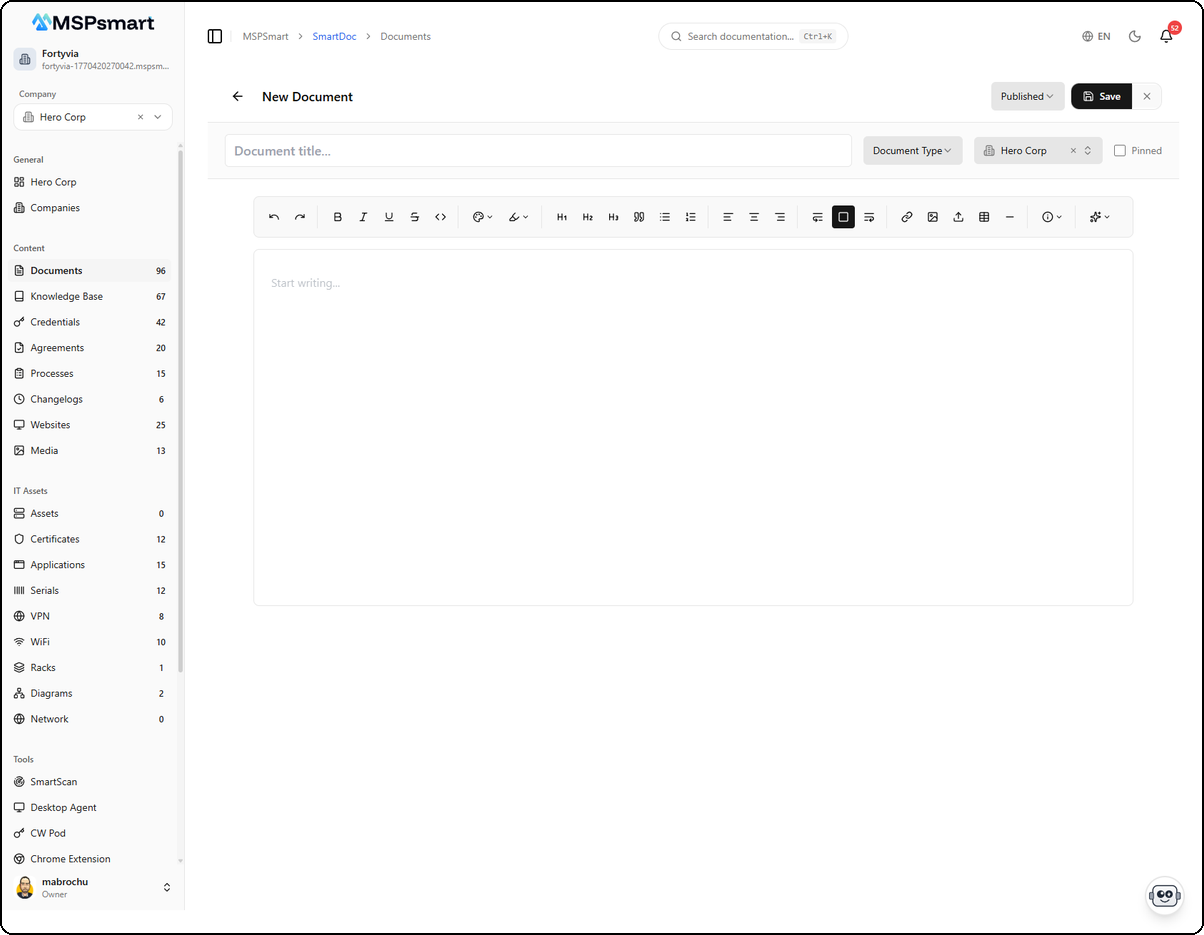
The document editor is a full-featured rich editor built on Slate. It provides a word-processor-like editing experience. The same editor is used for both documents and KB articles.
Blank Editor
Metadata
The editor's top bar contains the document metadata:
| Element | Documents | KB Articles |
|---|---|---|
| Title | Text field (required) | Text field with auto-generated URL slug |
| Type / Category | Document type (dropdown) | Hierarchical category |
| Company | Client association | Global or specific client |
| Status | Published, Draft, Archived | Published, Draft, Archived |
| Special | Pinned | Featured, Access Level (Internal/Client/Public) |
| Save | Save button | Save button |
Rich Editor (Slate)
The editor offers a comprehensive formatting toolbar organized in groups:
History — Undo / Redo
Text — Bold, italic, underline, strikethrough, inline code, text color, background color
Blocks — Headings (H1, H2, H3), blockquote, bullet list, numbered list
Alignment — Left, center, right, justify
Advanced — Code block (syntax highlighting), callouts, tables
Media — URL links, images (upload and embed), file attachments
Misc — Horizontal rule, table of contents, emoji
AI — AI tools menu (see next section)
Locking (KB)
A KB article can be locked by its creator to prevent edits by other users.
AI Features
The editor includes a built-in AI assistant accessible from the toolbar via the AI dropdown menu (star icon).

Five AI tools are available:
Correct Text
Automatically fixes spelling and grammar errors across the entire document. The correction is conservative: it does not modify structure, style, or HTML formatting. Only linguistic errors are corrected, with no rephrasing.
Improve Formatting
This is the most powerful AI tool in the editor. It restructures and enhances the visual presentation of your document while preserving 100% of the original content.
Before AI Enhancement
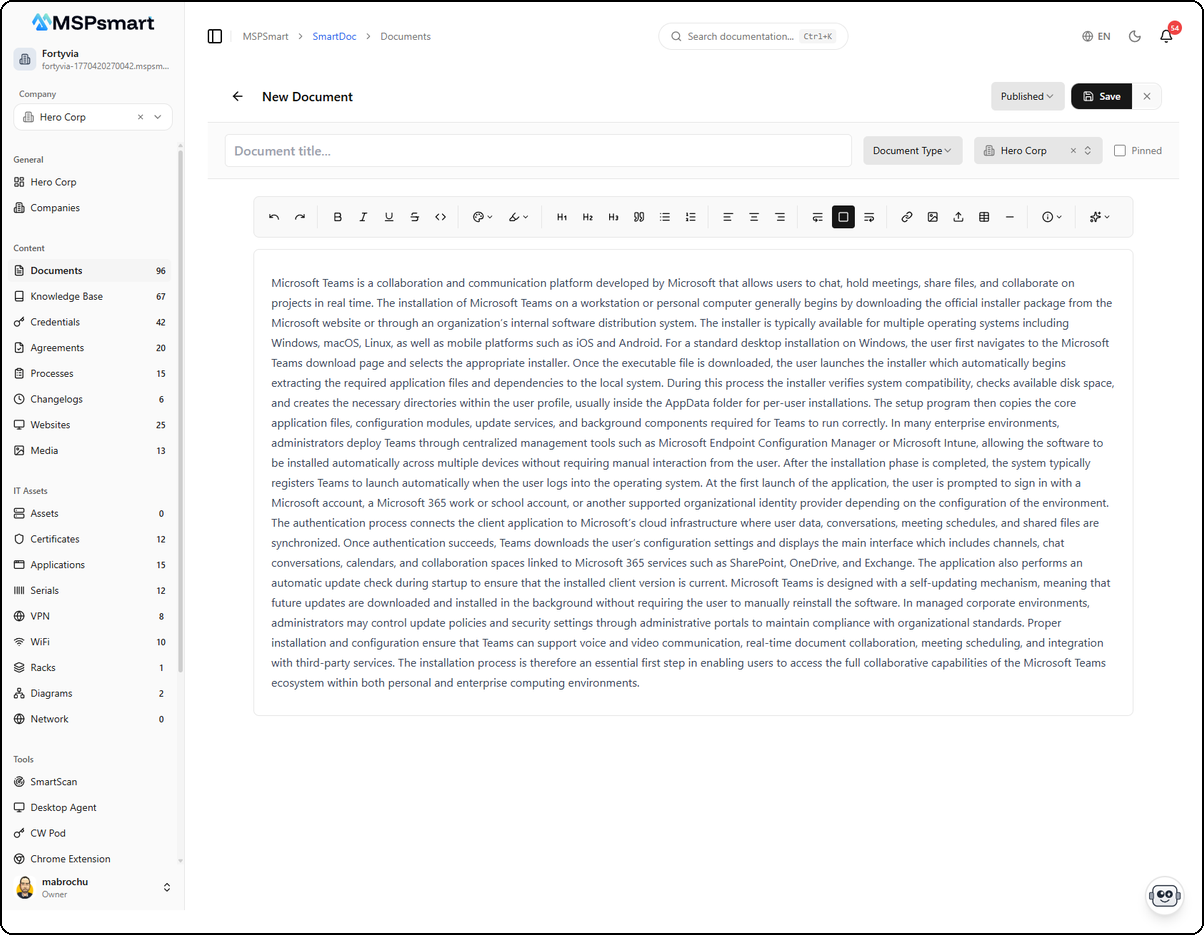
The document contains raw, unstructured text with no headings or formatting — typical of a copy-paste from an email or ticket.
After AI Enhancement
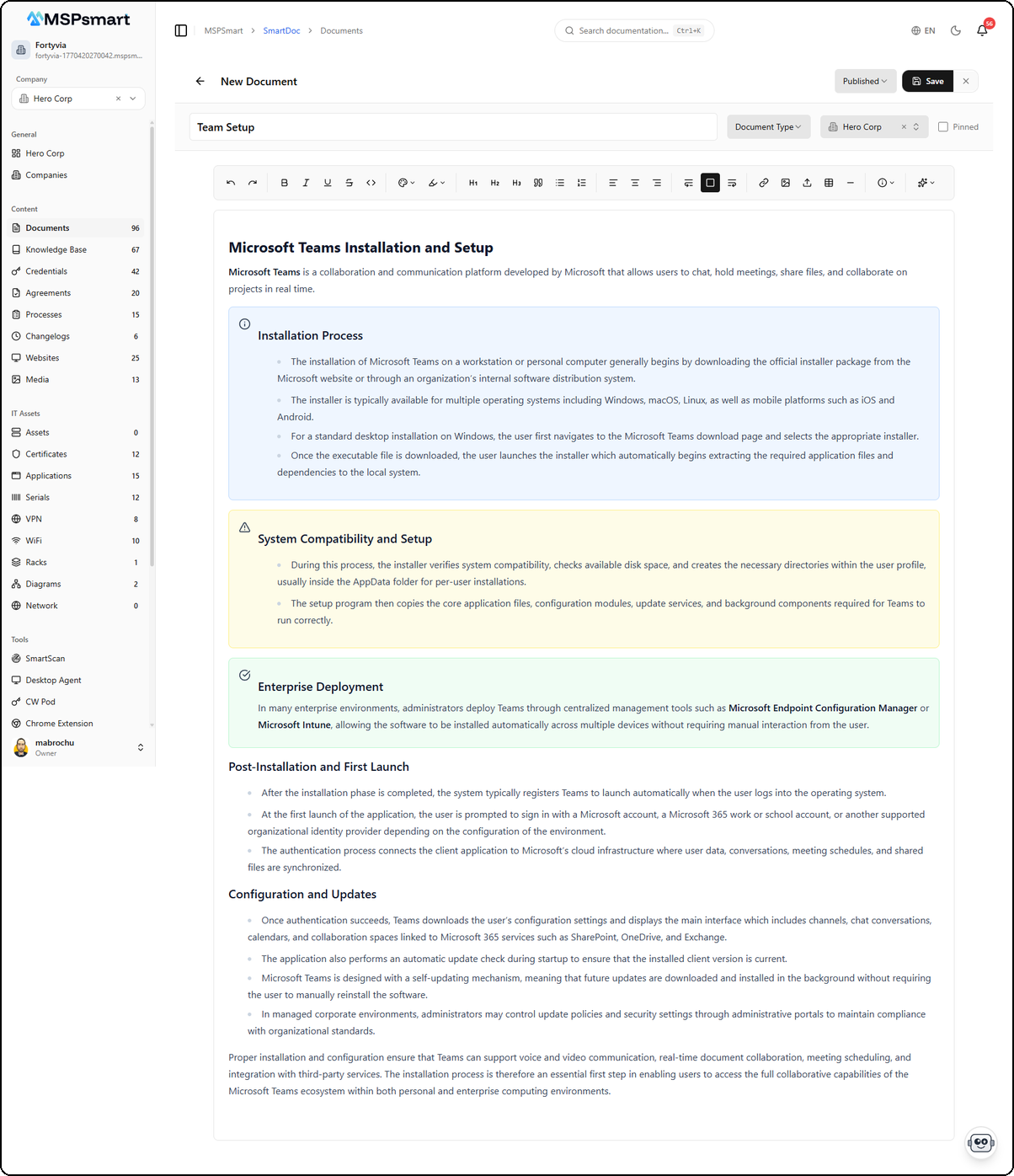
The AI automatically transformed the raw text into professional documentation:
What the AI does:
- Adds headings (
H2,H3) to structure sections - Converts paragraphs into bullet lists when appropriate
- Inserts callouts (info, warning, success)
- Bolds important terms
- Applies
codeformatting to technical terms - Improves spacing and paragraph structure
Preservation guarantees:
- No text, word, phrase, or information is ever removed
- All images are preserved in full (tags, attributes, dimensions)
- All links and URLs are kept exactly as-is
- Software names, systems, and application names are never altered
- Content is never summarized, condensed, or merged
Transforming raw paste content (ticket notes, emails, unformatted documentation) into professional, structured documentation in a single click.
Translate FR → EN / EN → FR
Translates the document in-place from one language to the other while preserving all HTML formatting (headings, lists, images, links, callouts). The original content is replaced with the translation.
Translate & Create New
Translates the content and creates a new document in the other language instead of replacing the current content. Lets you maintain both language versions side by side.
AI Wizard — Generate from Tickets
A 4-step wizard lets you generate a complete document from ConnectWise tickets:
- Selection — Choose ticket type (Service or Project) and up to 5 tickets
- Type — Select document type or KB category
- Instructions — Choose a template (optional) and provide AI instructions
- Generation — Review and auto-generate the content
The AI only uses data from the selected tickets (notes, time entries, resolutions) and never invents information.
Change History
Below the editor, the History section displays a chronological log of all actions performed on the document:

Each entry shows:
- A colored action badge indicating the event type:
- Viewed (gray) — The document was viewed
- Created (green) — The document was created
- Updated (blue) — The document was modified
- Published (purple) — The document was published
- Archived (red) — The document was archived
- The avatar and name of the user who performed the action
- A relative timestamp (e.g., "Just now", "5 minutes ago", "Yesterday")
- An eye button to view change details (before/after values)
Document Viewer
Read-only page displaying:
- Document type and title with pin indicator
- Status badge (Published / Draft / Archived)
- Metadata bar: company, version, creation and modification dates
- Full rich content rendering
- Complete change history
User Feedback (KB)
KB articles include a feedback system:
- "Helpful" button — Users indicate the article was useful
- "Not helpful" button — Negative feedback to identify articles needing improvement
- Counters are visible to administrators
Access Levels (KB)
The access level controls each KB article's visibility:
| Level | Admin Portal | Client Portal | Public |
|---|---|---|---|
| Internal | Yes | No | No |
| Client | Yes | Yes | No |
| Public | Yes | Yes | Yes |
Articles with Client or Public access level are visible on the client portal with full-text search, category filtering, and view counters.
Categories (KB)
Categories organize KB articles in a hierarchical structure:
- Parent-child — Nested categories across multiple levels
- Bilingual names (FR / EN) and optional descriptions
- Customizable Lucide icon
- Hex color for visual identification
- Automatic article count per category
Deletion is blocked if the category contains sub-categories or articles.
Search and Indexing (KB)
Full-Text Search
Each article is automatically indexed via PostgreSQL tsvector: title, excerpt, content, and tags.
Semantic Search (RAG)
KB articles are also indexed via vector embeddings for use by the SmartBot chatbot during knowledge retrieval.
Document Types
Custom document types with bilingual names, custom icons, and colors for visual identification.
Templates
SmartDoc includes a template library to quickly create documents, KB articles, and procedures. The Templates tab is accessible directly from the Documents page.
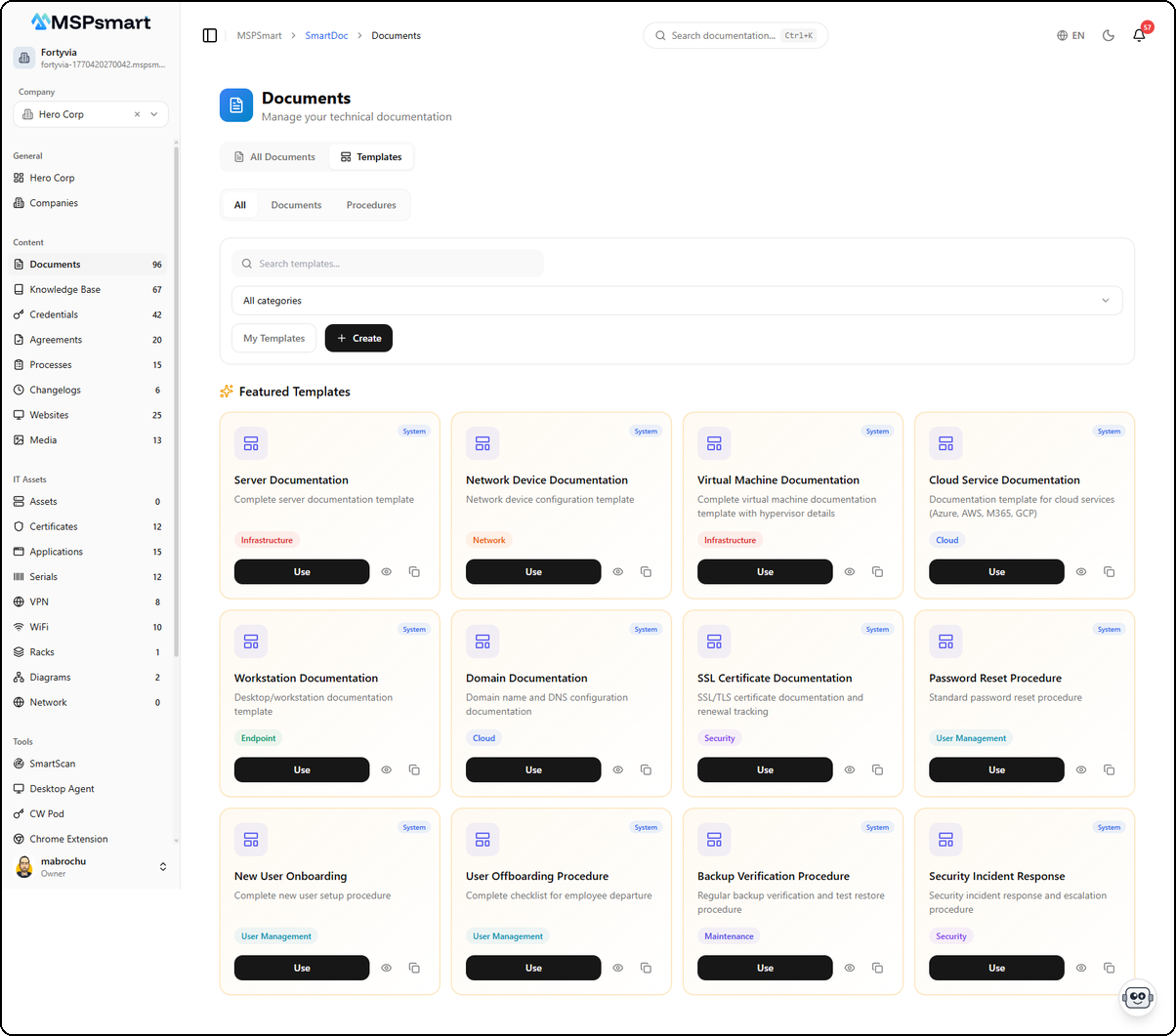
The page displays templates in a card grid with:
- A type filter: All, Documents, Procedures
- A search bar to find a specific template
- A category filter (Infrastructure, Network, Cloud, Security, etc.)
- A My Templates tab to view your custom templates
- A + Create button to create a new template
Each template card shows the name, description, category (colored badge), a System badge for pre-defined templates, and three action buttons: Use (create a document), view (preview), and copy (duplicate).
Create a Custom Template
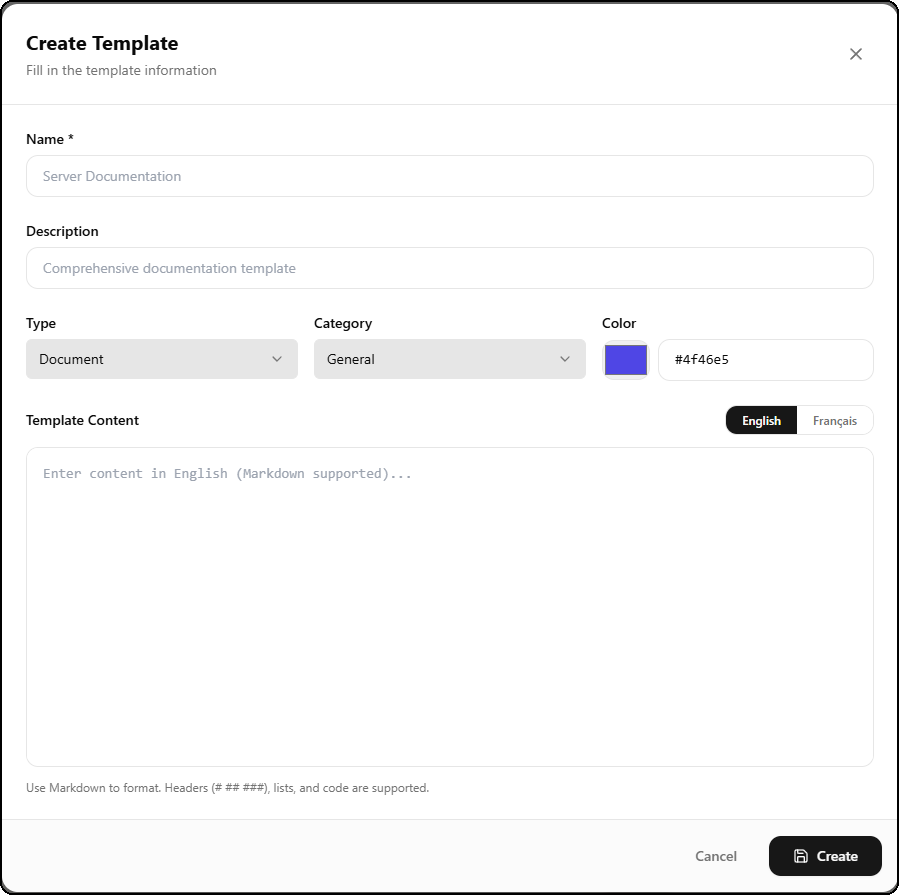
The template creation form includes:
| Field | Description |
|---|---|
| Name | Template name (required) |
| Description | Template description |
| Type | Template type (Document, KB Article, Procedure, Checklist) |
| Category | Category (General, Infrastructure, Network, Cloud, Security, etc.) |
| Color | Identification color (color picker with hex code) |
| Template Content | Template content with Markdown support (headers, lists, code) |
Template content supports Markdown and is bilingual: an English / Francais toggle lets you enter content in both languages.
Template Types
| Type | Usage |
|---|---|
| Document | Structured technical documentation |
| KB Article | Knowledge base articles |
| Procedure | Runbooks and processes with tasks |
| Checklist | Verification checklists |
System Templates — Documents
Pre-defined templates cover common use cases:
| Template | Category |
|---|---|
| Server Documentation | Infrastructure |
| Virtual Machine Documentation | Infrastructure |
| Network Device Documentation | Network |
| Cloud Service Documentation | Cloud |
| Domain Documentation | Cloud |
| Workstation Documentation | Endpoint |
| SSL Certificate Documentation | Security |
System Templates — KB Articles
| Template | Category |
|---|---|
| FAQ Article | General |
| Troubleshooting Guide | Technical |
| How-To Guide | Technical |
| Policy Document | Compliance |
System Templates — Procedures
| Template | Category |
|---|---|
| Employee Onboarding | Onboarding |
| Contractor Onboarding | Onboarding |
| New Client Onboarding | Onboarding |
| Employee Offboarding | Offboarding |
| New Workstation Setup | New User |
| Mobile Device Setup | New User |
| Quarterly Security Review | Security |
| Security Incident Response | Security |
| Password Reset Request | Security |
| Monthly Server Maintenance | Maintenance |
| Backup Recovery Test | Maintenance |
| Network Equipment Setup | Infrastructure |
| Server Deployment | Infrastructure |
| GDPR Data Subject Request | Compliance |
Template Structure
Each template contains:
- Bilingual name (FR / EN) and description
- Pre-filled rich content (bilingual HTML)
- Sections with customizable ordering
- Defined fields with types: text, textarea, number, date, select, multi-select, checkbox, URL, email, IP, MAC
- Category, tags, icon, and color
Template Management
- System templates are read-only but can be copied for customization
- Create custom templates from scratch
- Search and filter by type, category, featured
- Usage counter to track popularity
- One-click document creation from any template
Deletion and Archiving
SmartDoc uses a two-step deletion system:
- First delete → Document status changes to Archived (soft delete)
- Second delete (archived document) → Permanent removal from the database
Archived documents are accessible via the "Show archives" toggle and can be restored.