Media and Photos
The Media module is an advanced photo library with built-in AI analysis. It lets you visually document your clients' infrastructure: server rooms, racks, cabling, labels, network diagrams, and more.
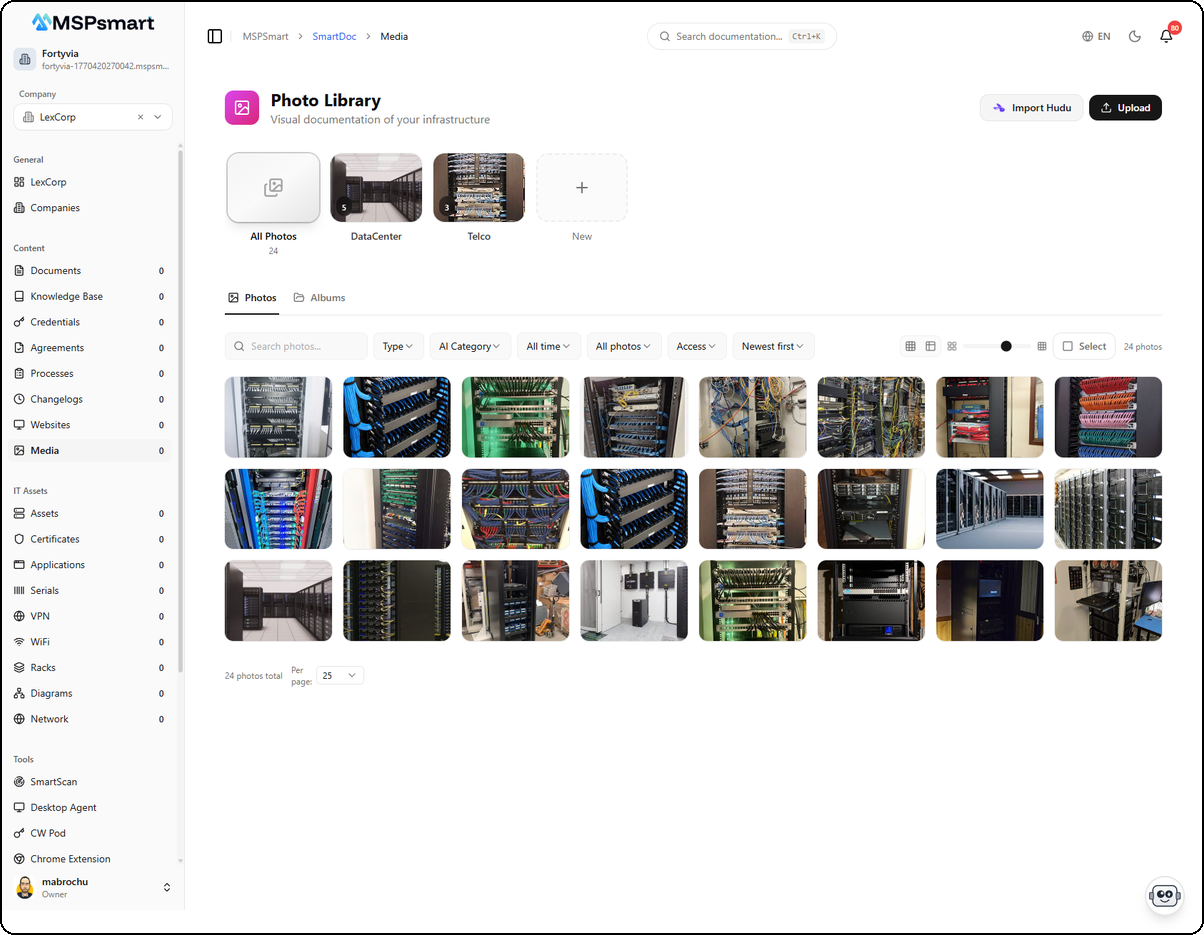
Photo Upload
- Drag and drop directly onto the page (up to 10 files at once)
- Formats: JPEG, PNG, WebP, GIF (10 MB max per file)
- Auto-analysis: Optional AI analysis on upload
- Metadata: Name, description, equipment type, location, tags
AI Photo Analysis
SmartDoc automatically analyzes your photos with a two-pass system. Select a photo and click the Analyze button to launch automatic detection.
Launching the Analysis
The analysis dialog shows a preview of the photo and lists the types of information AI will automatically detect:
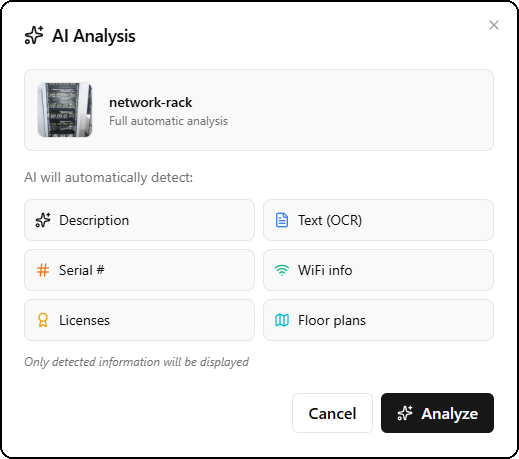
| Detection | Description |
|---|---|
| Description | Textual description of the photo content |
| Text (OCR) | Extraction of visible text (labels, barcodes, QR codes) |
| Serial # | Serial numbers of visible equipment |
| WiFi info | SSID, password, security type |
| Licenses | Product, license key, expiration date |
| Floor plans | Room detection, positions, and network drops |
Only information actually detected in the photo is displayed in the results.
Analysis Progress
Once launched, the analysis displays a progress bar with completion percentage. The process goes through several stages (classification, detailed analysis, finalization).
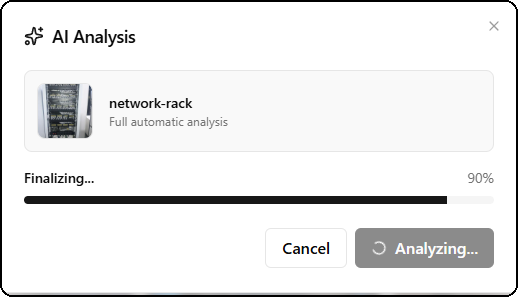
During analysis, the Analyzing... button is disabled and a Cancel button allows cancellation if needed.
Analysis Results
Once complete, the analysis presents structured results in several sections:
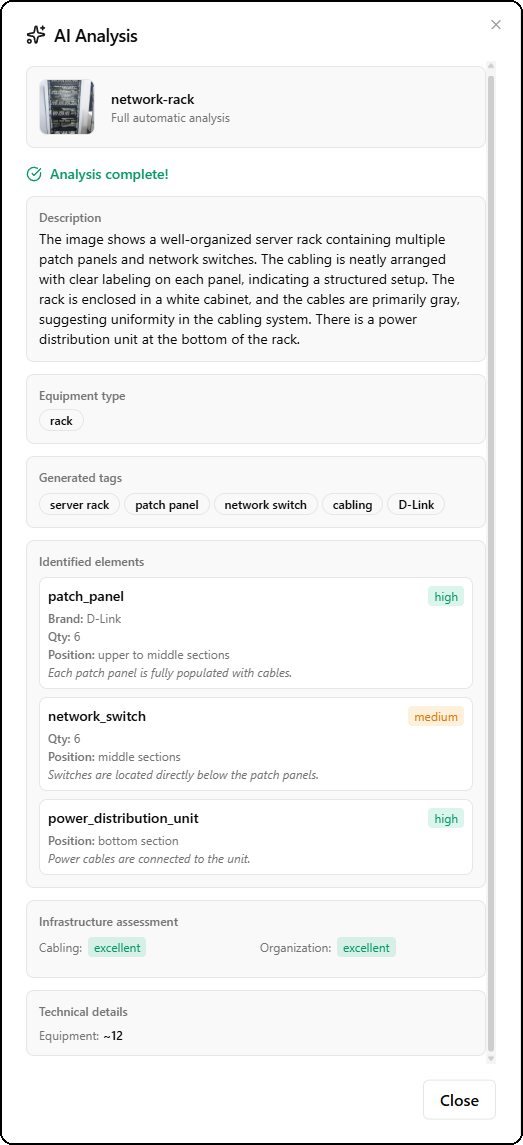
Description
AI generates a detailed description of the photo content (e.g., "The image shows a well-organized server rack containing multiple patch panels and network switches...").
Equipment Type and Generated Tags
- Equipment type — Detected category (e.g., rack, server, switch)
- Generated tags — Automatic tags based on content (e.g., server rack, patch panel, network switch, cabling, D-Link)
Identified Elements
Each detected piece of equipment is listed with its confidence level (high, medium, low):
| Field | Description |
|---|---|
| Type | Equipment type (patch_panel, network_switch, power_distribution_unit) |
| Brand | Identified brand if visible |
| Qty | Detected quantity |
| Position | Location in the photo (upper sections, middle sections, bottom section) |
| Description | Contextual observation in italics |
Infrastructure Assessment
Overall assessment of the visible infrastructure:
- Cabling — Cable quality (excellent, good, poor)
- Organization — Organization level (excellent, good, poor)
Technical Details
Additional technical information such as the total number of detected equipment.
Analysis Management
- Batch re-analysis (max 10 photos, up to 3 times per photo)
- Data lock — Prevent accidental re-analysis of AI data
Albums
Organize your photos into themed collections. Each album can group photos by site, client, or specific equipment type.
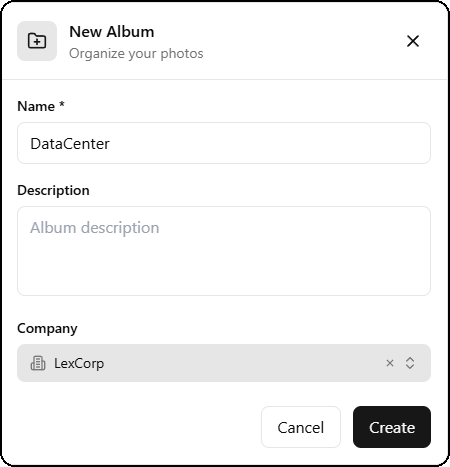
- Create albums with bilingual metadata (FR / EN)
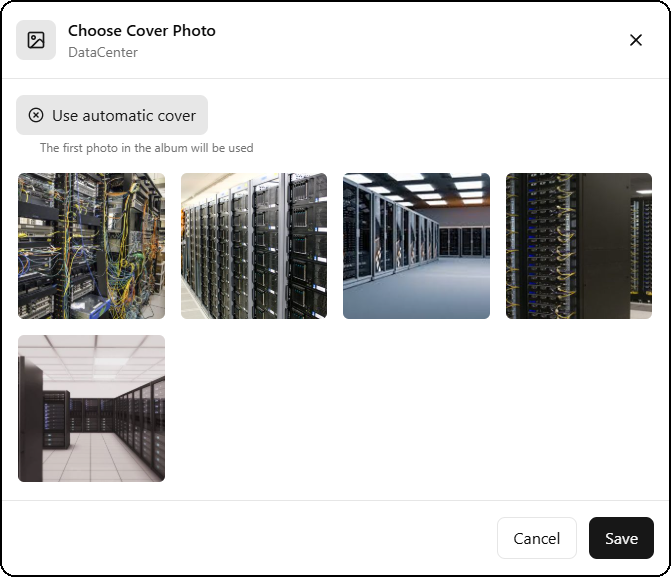
- Set a cover photo from the album's photos
- Add / remove photos in bulk
- Quick-access album sidebar
View Modes
Grid
The default view displays photos as a visual gallery with adjustable zoom from 1 to 10.
| Level | Columns | Usage |
|---|---|---|
| 1-3 | 10 columns | Thumbnail gallery |
| 4-6 | 6 columns | Balanced view |
| 7-10 | 4 columns | Detailed cards |
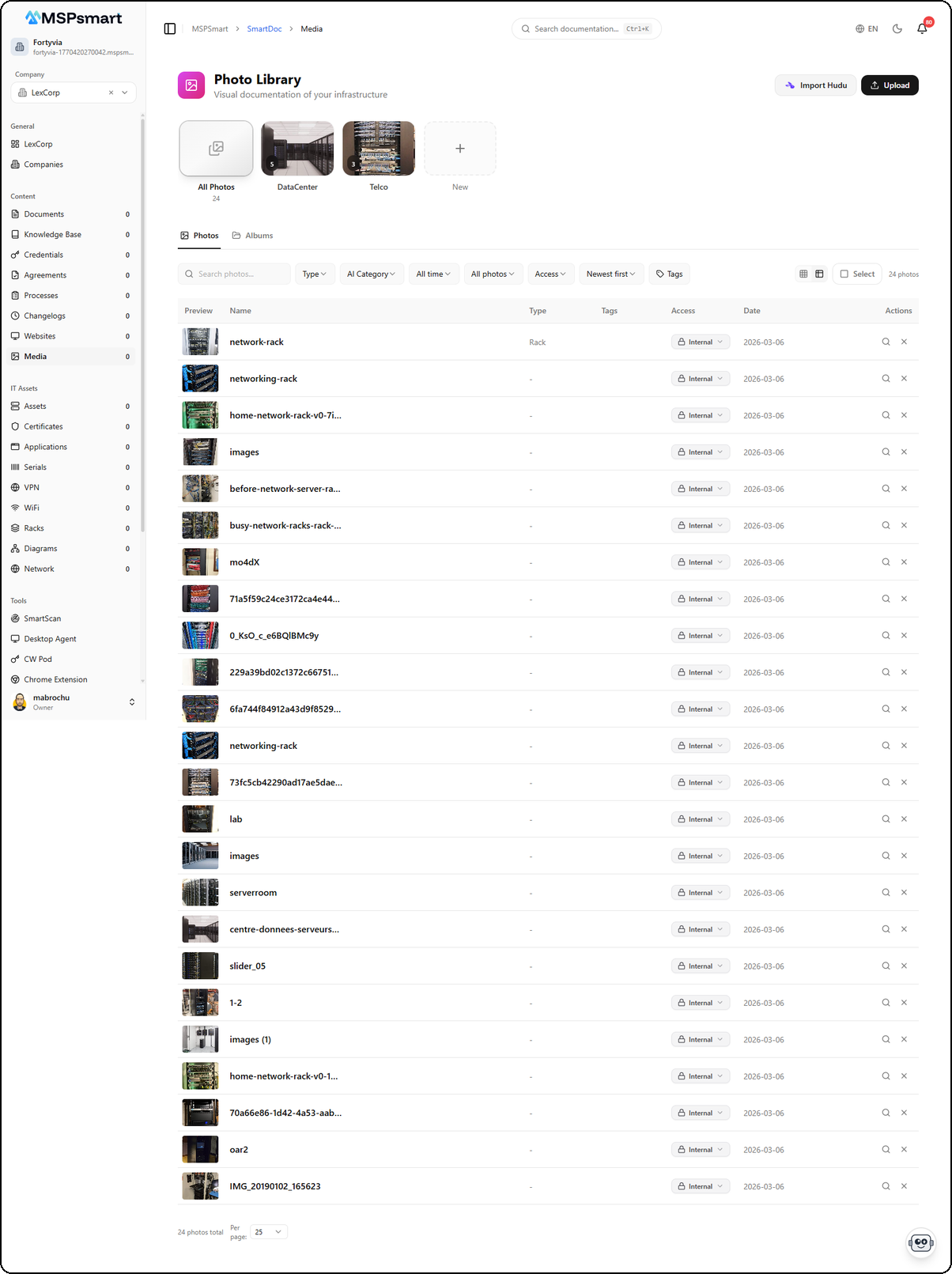
Table
The table view provides a detailed list with sortable columns: name, equipment type, tags, access level, and date. Ideal for managing and quickly sorting large collections.
Search and Filters
- Search by name, tags, descriptions, and extracted OCR text
- Company: filter by client
- Equipment type: server, switch, rack, printer, etc.
- Photo category: AI-classified categories
- Tags: quickly filter by user tags and AI-generated tags
- Analysis status: Analyzed / Not Analyzed
- Period: All time, today, this week, this month, last 3 months
- Sort: Newest, oldest, name A-Z, name Z-A

Bulk Actions
- Multi-select with selection mode toggle
- Change access level
- Add / remove tags
- Delete in bulk
- Move to album
- Batch analyze (up to 10 photos)
Content Links
Each photo can be linked to:
- Assets — Associate with physical equipment
- Documents — Reference in documentation
- KB Articles — Include in knowledge base articles
Link count is visible on each photo.
Photo Viewer
The full-screen viewer lets you inspect each photo in detail with all its metadata and AI analysis results in a side panel.
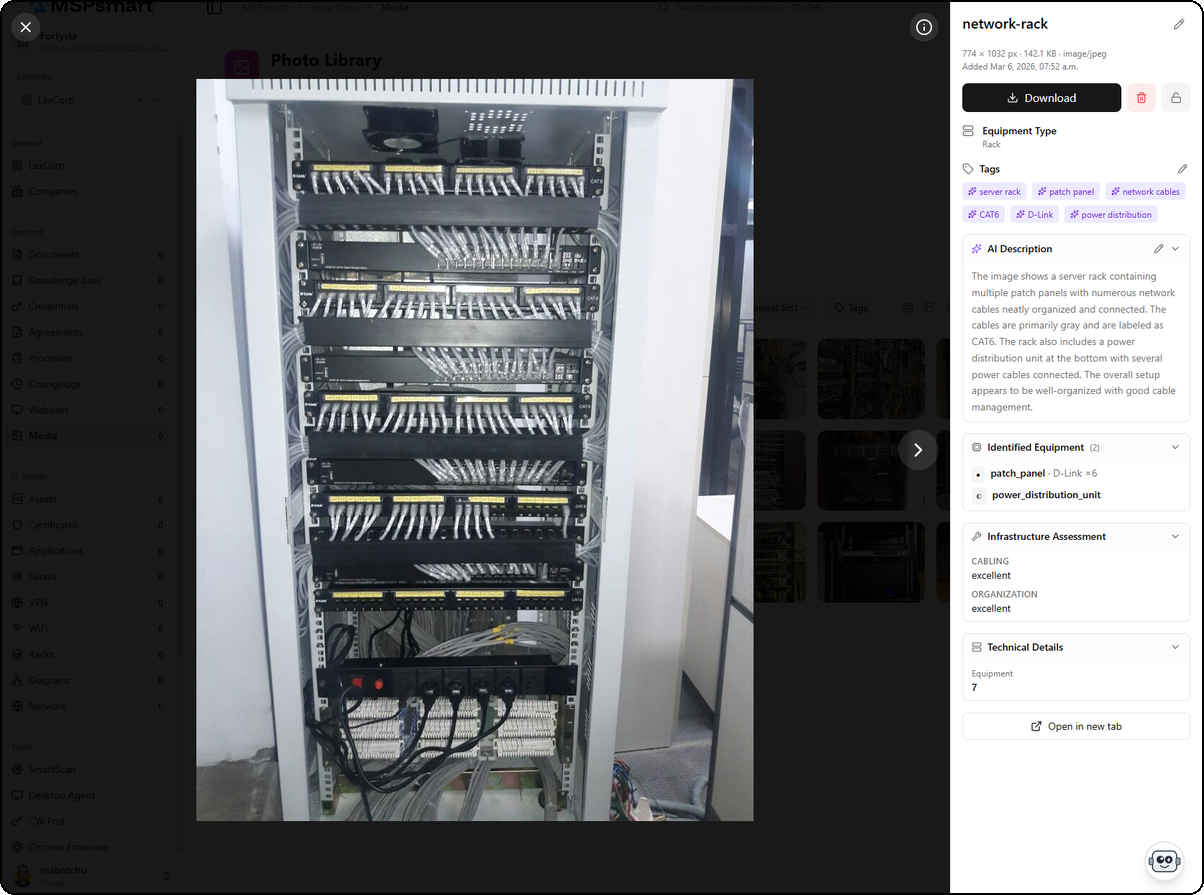
- View the image in high resolution
- See all metadata and AI analysis results
- Edit name, description, tags, equipment type, location
- Download the original
- Navigate between photos (previous / next)