Applications
The Applications module in SmartDoc centralizes the management of software licenses for your MSP clients. It allows you to track every software application installed across your environment, monitor expiration dates, store license keys securely, and track installations on assets.
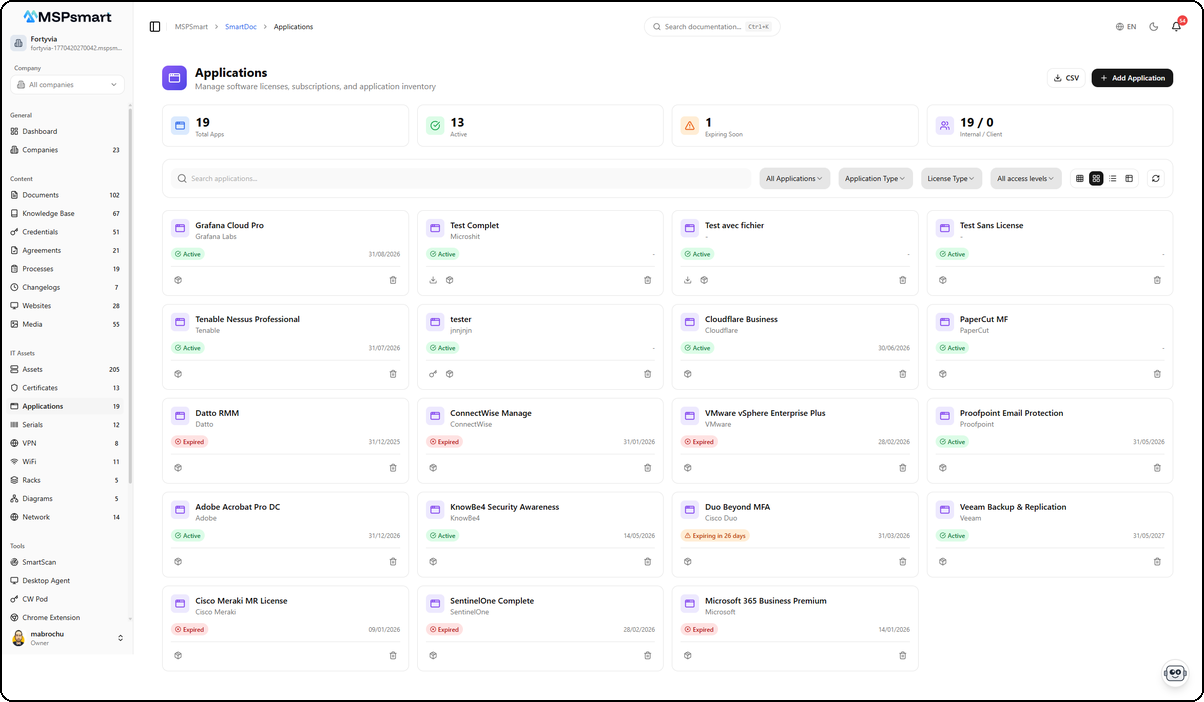
Overview
The Applications module is designed for MSP technicians who manage software and licenses across multiple clients simultaneously. Each application is associated with a client company, can be categorized by type (antivirus, ERP, collaboration tool, etc.) and by license type (perpetual, subscription, OEM, etc.).
License keys are encrypted with AES-256-GCM and are never exposed in lists. Only users with the reveal permission can display a key in plain text, and every disclosure is recorded in the audit log.
Key Features
Software Catalog with License Management
Each documented application can contain:
- Software identification details (name, version, vendor, description)
- License key (encrypted, displayed on demand)
- Activation ID
- Number of authorized and used seats
- Useful URLs (vendor website, download, documentation, support)
Expiration Alerts
The system automatically monitors expiration dates. By default, an alert is generated 30 days before expiration, but this period is configurable per application. The "Expiring" view lists all applications whose license expires within the next N days, sorted in chronological order.
Available statuses:
- Active — license currently valid
- Trial (
trial) — evaluation period - Expired — validity date has passed
- Inactive — application intentionally disabled
- Archived — retained for historical purposes, not active
Billing Cycle Management
The module supports multiple billing cycles:
- One-time purchase (
one-time) - Monthly (
monthly) - Quarterly (
quarterly) - Yearly (
yearly) - Multi-year (
multi-year)
For each application, you can enter the cost, currency, next renewal date, and enable automatic renewal (is_auto_renew).
Attached License File
A license file can be attached directly to the application (PDF, TXT, DOC, DOCX, CSV, XML, JSON, LIC, KEY, RTF, XLSX formats). The maximum file size is 5 MB per file. File content is validated (magic number verification) before being stored in the tenant's secure storage bucket.
Customizable Application Types
Applications can be categorized according to predefined or tenant-customized types (with associated icon and color). Examples of system types: Antivirus, Productivity, Security, ERP, CRM, Backup, Networking.
User Interface
Navigation
The Applications module is accessible from the SmartDoc side menu, under the IT Assets section. If a company filter is active in SmartDoc (via the selector at the top of the page), only applications for that company are displayed.
Display Modes
The interface offers four display modes, selectable via the buttons at the top right of the list:
| Mode | Icon | Description |
|---|---|---|
| Small cards | Compact grid | Compact view, ideal for quick browsing |
| Medium cards | Wide grid | Displays name, vendor, status, and expiration date |
| Large cards | Card list | Displays all key details at a glance |
| Table | Columns | Full tabular view with all columns |
Table mode is the default. It displays the following columns: Name, Client (if no company filter), Type, Vendor, Version, Expiration, Status, Access Level, Actions.
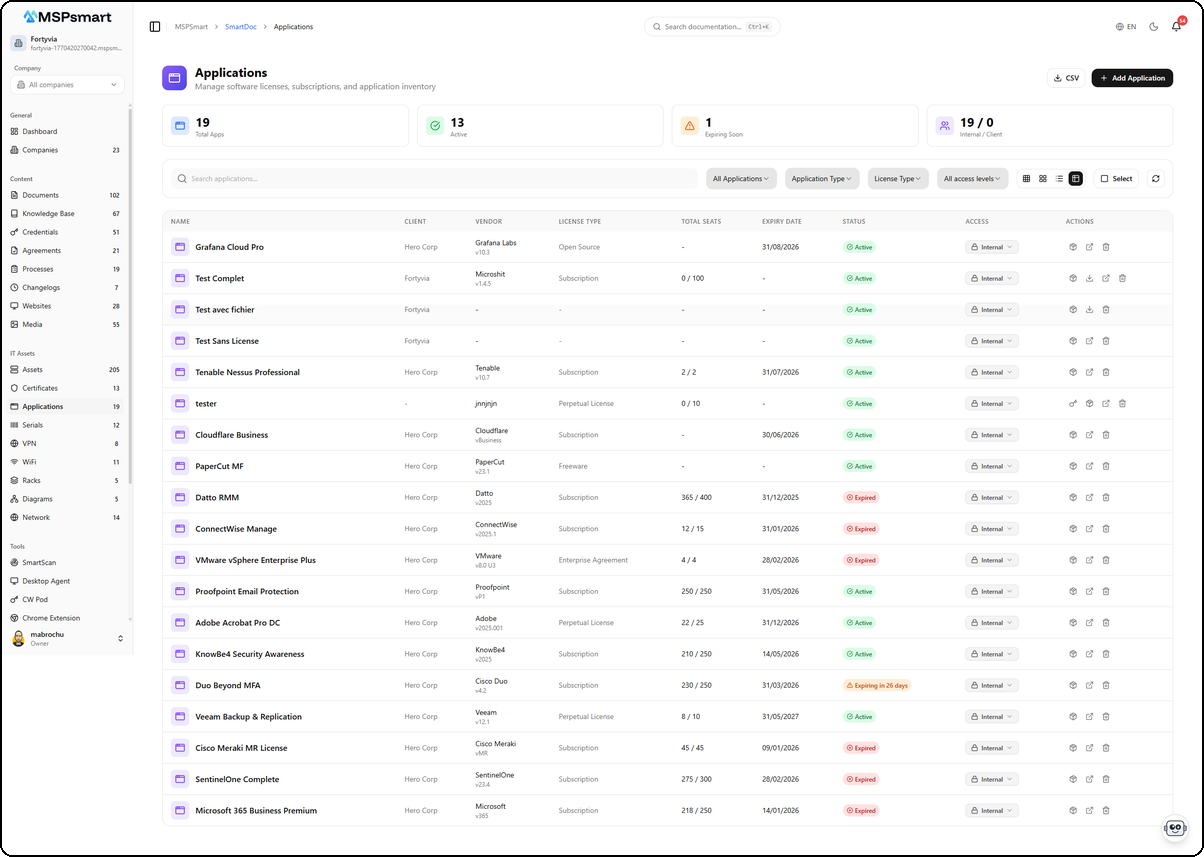
The table view displays all applications with their detailed information. Each row shows the application name, associated client, vendor with version number, license type (Subscription, Perpetual License, Open Source, Freeware, Enterprise Agreement), seats used out of total authorized, expiration date, and status as a colored badge. The Actions columns provide quick access to details, editing, and deletion.
Statistics Dashboard
At the top of the page, a dashboard displays 4 real-time metrics:
- Total number of applications
- Active applications
- Licenses expiring soon (within 30 days)
- Internal / Client breakdown
Available Filters
- Text search — full-text search on name, description, vendor
- Status filter — All / Active / Expired / Trial / Inactive
- Type filter — filter by application type
- License type filter — filter by license type
- Access level filter — Internal / Client / Public
Available Actions
From the list:
- Click on an application — opens the details side panel
- Key button (Key icon) — reveals the encrypted license key (with audit log)
- Export button (CSV) — exports the visible data
- Delete button — deletes after confirmation
From the side panel (slide panel):
- View all details
- Edit (edit mode)
- View installations on assets
- Reveal the license key
- Delete the application
Creating an Application
The + Add Application button opens a side panel that lets you enter all application information in a single step.
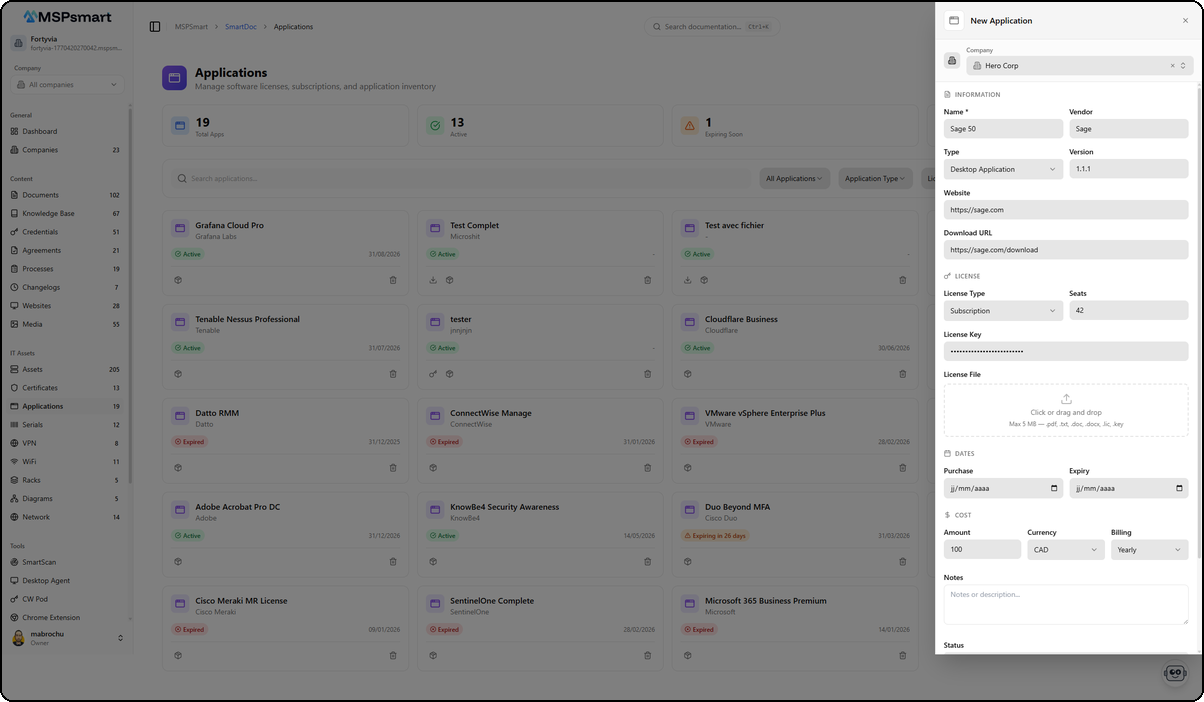
The form is organized into sections:
- Company — Select the associated client via a dropdown
- Information — Application name, vendor, type (Desktop Application, Web Application, SaaS, Mobile App, etc.) and version
- Website / Download URL — Links to the official website and download page
- License — License type (Subscription, Perpetual, OEM, etc.), number of seats, license key (encrypted), and license file via drag-and-drop (max 5 MB)
- Dates — Purchase date and expiry date
- Cost — Amount, currency (CAD, USD, EUR), and billing cycle (Monthly, Yearly, etc.)
- Notes — Free text field for installation instructions or additional information
- Status and Access Level — Application status and visibility level
Application Detail
Click on an application in the list to open the detail side panel. This panel presents all application information in a structured layout.
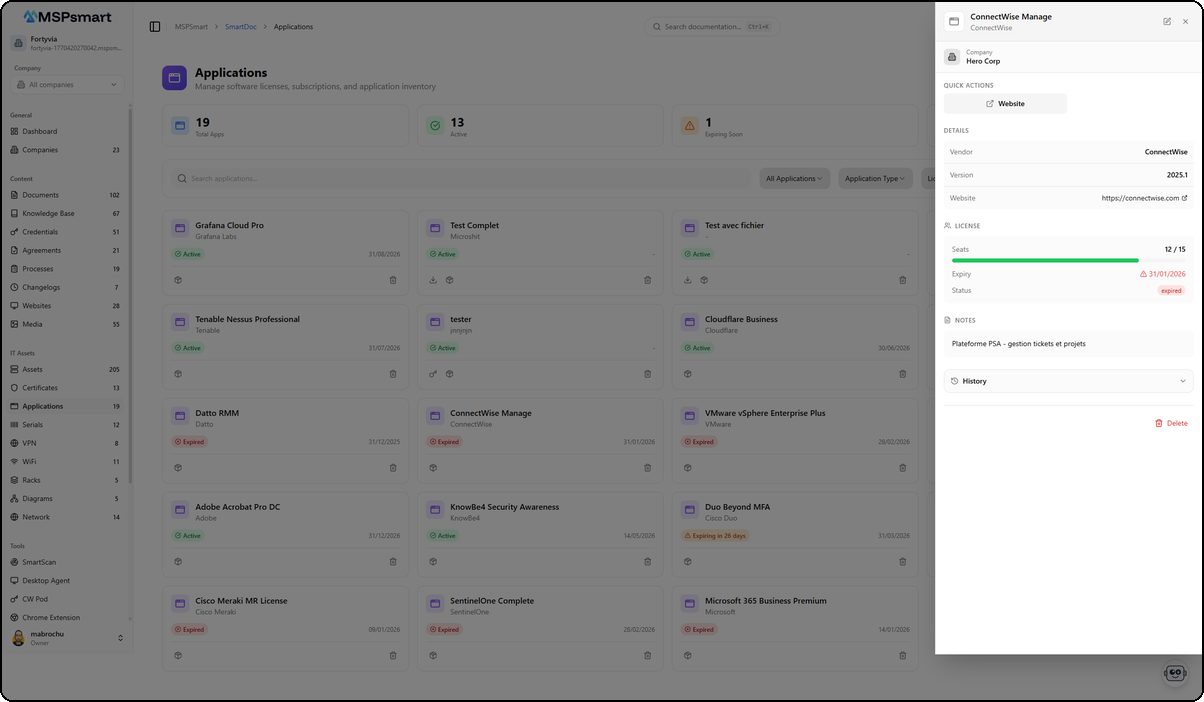
Header
The header displays the application name (e.g., ConnectWise Manage) and the vendor (e.g., ConnectWise). The associated company is shown below (e.g., Hero Corp). Edit and close buttons are available in the top right corner.
Quick Actions
The Website button opens the vendor's website directly in a new tab.
Information Sections
| Section | Content |
|---|---|
| Details | Vendor, version, website with clickable link |
| License | Seats used/authorized with progress bar, expiry date with alert indicator, status (active/expired) |
| Notes | Internal notes describing the application's usage |
Access History
The History section at the bottom of the panel displays the application access log.

Each entry shows the action type (Viewed, Created, Updated), the user's avatar and name, and the time elapsed since the action.
Fields and Information
General Information
| Field | Description | Required |
|---|---|---|
| Name | Application name | Yes |
| Name (FR) | Name in French | No |
| Description | Detailed description | No |
| Company | Associated client company | No |
| Application type | Software category | No |
| Vendor | Software vendor name | No |
| Version | Installed version | No |
| Status | active / trial / expired / inactive / archived | Yes |
| Tags | Keywords for searching | No |
License and Cost
| Field | Description | Required |
|---|---|---|
| License key | AES-256-GCM encrypted key | No |
| Activation ID | Activation identifier | No |
| Number of seats | Number of authorized licenses | No |
| Seats used | Number of seats currently in use | No |
| Purchase date | License purchase date | No |
| Expiration date | End of validity date | No |
| Renewal date | Next renewal date | No |
| Expiration alert (days) | Alert lead time before expiration | No (default: 30) |
| Cost | License amount | No |
| Currency | Currency (default: CAD) | No |
| Billing cycle | one-time / monthly / quarterly / yearly / multi-year | No |
| Next billing date | Next scheduled payment | No |
| Auto-renewal | Yes / No | No |
URLs and Resources
| Field | Description |
|---|---|
| Website URL | Vendor's official website |
| Support URL | Support portal |
| Documentation URL | Technical documentation |
| Download URL | Direct download link |
| License file | Attached file (PDF, LIC, KEY, etc.) |
Installation Notes
| Field | Description |
|---|---|
| Installation notes | Installation and configuration instructions (rich HTML) |
| Installation notes (FR) | French version of the notes |
Custom Fields
Custom fields can be added as key-value pairs to store any information specific to your organization.
License Management
Revealing a License Key
The license key is encrypted with AES-256-GCM and is never visible in lists. To view a key:
- Click the Key icon in the Actions column
- The key is displayed in plain text for 60 seconds
- It automatically hides after this delay
Each disclosure is recorded in the audit log with:
- User identity
- IP address
- Browser used
- Optional reason
The system enforces a rate limit: maximum 10 reveals per minute per user per application.
License Types
License types are configurable and can include: Perpetual, Subscription, OEM, Academic, Shareware, Open Source, Enterprise, NFR (Not For Resale).
Installation Tracking
Associating an Application with an Asset
The module allows you to track which assets (workstations, servers) have an application installed. From the application details panel, the Installations tab lists all assets on which the application is deployed.
To add an installation:
- Open the application details
- Click Add Installation
- Select the asset from the list
- Enter the installed version (optional)
- Add notes (optional)
This feature allows you to monitor seat usage (license_seats_used) against purchased seats (license_seats).
Security and Encryption
Sensitive data is protected by AES-256-GCM encryption with a unique key per tenant (KMS):
- License key (
license_key_encrypted) — systematically encrypted before storage - License file — stored in the tenant's private storage bucket
The encryption keys are themselves encrypted by the KMS (Key Management Service) before being stored in the database. Decryption only occurs at the time of explicit disclosure by an authorized user.
All views, modifications, and key disclosures are recorded in smartdoc_application_access_log and smartdoc_audit_log.
Bulk Actions
Selection mode (the Select button in Table view) allows you to apply actions to multiple applications simultaneously (up to 100 items):
| Action | Description |
|---|---|
| Change access level | Modify the access level of multiple applications in one operation |
| Change status | Update the status of multiple applications |
| Add tags | Add tags to a selection |
| Remove tags | Remove tags from a selection |
| Change company | Reassign a selection to another client company |
| Archive | Set status to "archived" |
| Duplicate | Create a copy of each selected application |
| Delete | Permanently delete the selection |
Access Levels
Each application can have a visibility level:
| Level | Description |
|---|---|
| Internal | Visible only to MSP technicians (default) |
| Client | Visible to users on the client portal of the associated company |
| Public | Visible without authentication |
The access level can be changed directly from the list without opening the full edit form. Only authorized roles can modify this field.
SmartBot Integration
All applications are automatically indexed in SmartDoc's semantic search engine (RAG). The SmartBot chatbot can therefore answer questions such as:
- "What is the expiration date of CompanyX's Microsoft 365 license?"
- "How many seats are still available on our Adobe CC license?"
- "Which software licenses expire this month?"
Indexing is performed automatically with each application creation or modification. Deleting an application also removes its entry from the index.
Best Practices
- Always enter expiration dates to benefit from automatic alerts and the upcoming expirations dashboard
- Use application types to categorize your catalog — this makes searching and navigation easier
- Attach the original license file (PDF, LIC) for quick access during reinstallation
- Enter the number of authorized and used seats to detect over-licensing or under-utilization
- Use installation notes to document client-specific procedures
- Configure the expiration alert to 60 or 90 days for critical licenses (antivirus, OS, ERP)
- Associate installations with assets to justify license usage during audits
- Prefer the Internal access level for software with sensitive license keys
Last updated: March 2026