Certificates
The Certificates module is a secure vault for managing digital SSL/TLS certificates and other security certificates. It allows you to centralize, monitor expiration dates, and securely store certificates and their associated private keys.
Overview
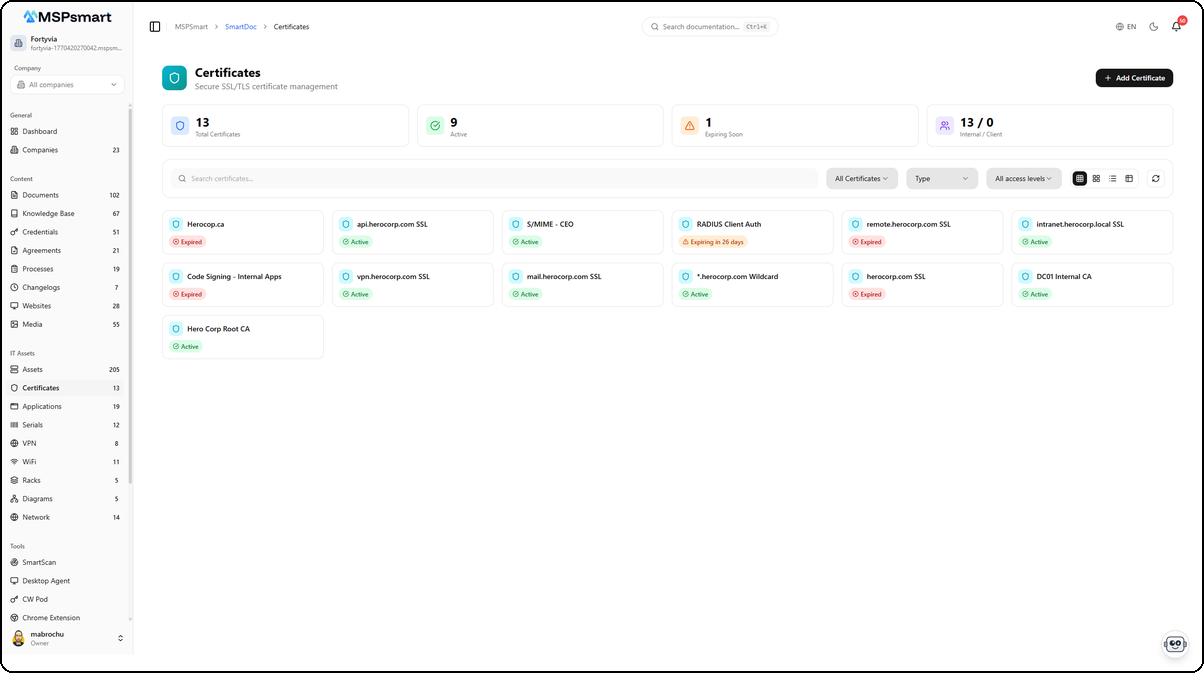
The Certificates module is designed for MSPs that manage SSL/TLS certificates for their clients. Each certificate can store public metadata (domain, issuer, validity dates, fingerprint) as well as encrypted sensitive data (private key, passphrase, certificate chain). Visual alerts flag certificates that are expiring soon with colored badges (Active in green, Expired in red, Expiring in N days in orange).
Security and Encryption
Encryption Architecture
Sensitive certificate data is encrypted with AES-256-GCM using a unique key per tenant:
- Each tenant has a dedicated encryption key stored in the
smartdoc_encryption_keystable - This tenant key is itself encrypted by the Key Management Service (KMS) before being persisted
- During an encryption operation, the tenant key is first decrypted by the KMS, then used to encrypt the data
The encrypted fields are:
- Private key (
private_key_encrypted) - the RSA/ECDSA key associated with the certificate - Passphrase (
passphrase_encrypted) - the password protecting the private key - Certificate chain (
certificate_chain_encrypted) - intermediate and root certificates
This data is never returned by the API during a standard listing or view. It is only accessible via the Reveal action (see dedicated section).
Tenant Isolation
Each tenant has its own encryption key. It is technically impossible for one tenant to access another tenant's sensitive data, even in the event of a database breach.
Dedicated Access Log
Each access to a certificate is recorded in smartdoc_certificate_access_log with:
- Access type (view, reveal, create, update, delete)
- User's IP address
- Browser user-agent
- Timestamp
- Success or failure
Key Features
Status Dashboard
The page displays a 4-metric dashboard at the top of the list:
| Metric | Description |
|---|---|
| Total certificates | Total number of certificates |
| Active | Certificates with active status |
| Expiring soon | Certificates whose validity expires within the next 30 days |
| Internal / Client | Distribution by access level |
Automatic Expiration Alerts
The system automatically detects certificates approaching their expiration date and displays colored badges:
| Badge | Condition | Color |
|---|---|---|
| Active | Valid, more than 30 days remaining | Green |
| Expires in N days | Less than 30 days before expiration | Orange |
| Expired | Validity date passed | Red |
| Pending | pending status | Yellow |
| Revoked | revoked status | Gray |
The alert threshold is configurable per certificate via the expiry_alert_days field (default: 30 days).
Certificate Types
Certificates are organized by types, configured by the administrator. Types include, for example, SSL DV, SSL OV, SSL EV, Wildcard, Code Signing, S/MIME, etc. Types have bilingual names (FR/EN).
DocBot Indexing (RAG)
Each certificate created or modified is automatically indexed in SmartDoc's search engine. DocBot can thus answer questions like "What is the SSL certificate for the domain client.example.com?" or "Which certificates expire this month?".
User Interface
Navigation
Access the module via: SmartDoc > Certificates
If a client company is selected in the active context, the list is filtered to show only that company's certificates.
Display Modes
The module supports four display modes accessible via the toolbar:
| Mode | Description |
|---|---|
| Small cards | Compact grid (6 columns): name and status badge only |
| Medium cards | Intermediate grid (4 columns): name, domain, status, expiration date |
| Large cards | Detailed grid (3 columns): name, type, domain, expiration date, client |
| Table | Tabular view with all columns: name, client, type, domain, validity date, status, access, actions |
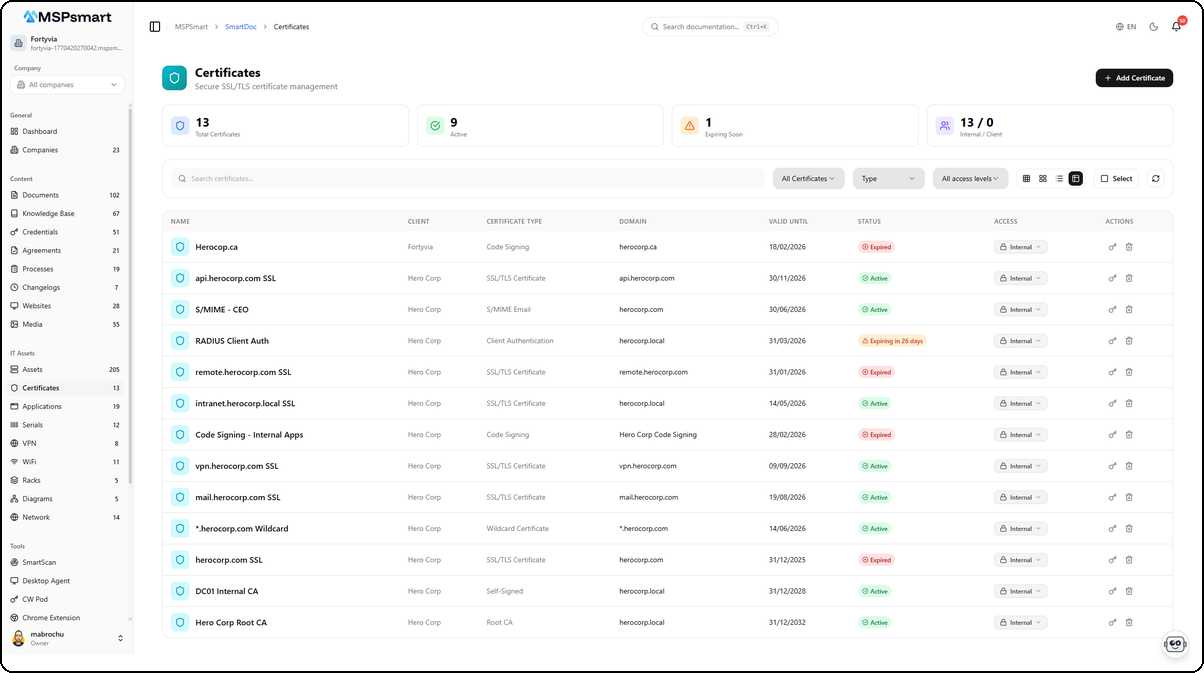
The table view displays all certificates with their key information in a tabular format. Each row shows the certificate name, associated client, type (SSL/TLS Certificate, Code Signing, Wildcard, etc.), protected domain, validity dates, and status as a colored badge. The dashboard at the top summarizes metrics: total certificates, active, expiring soon, and internal/client distribution.
Available Filters
- Text search - full-text vector search on name, domain, issuer, description
- Status - Active, Expired, Revoked
- Type - filter by certificate type
- Access level - Internal, Client, Public
- Upcoming expiration - via the
expiring_daysfilter (API)
Available Actions
- New certificate - side panel for creation with optional file upload
- View details - side panel with all information (without sensitive data)
- Edit - editing in the side panel, with the ability to replace the file
- Reveal secrets - temporary display of the private key and passphrase (60 seconds)
- Download - download the certificate file (PEM, PFX, P7B...)
- Change access level - inline modification in the list
- Delete - deletion with confirmation
Creating a Certificate
The + Add Certificate button opens a side panel that lets you enter all certificate information in a single step.
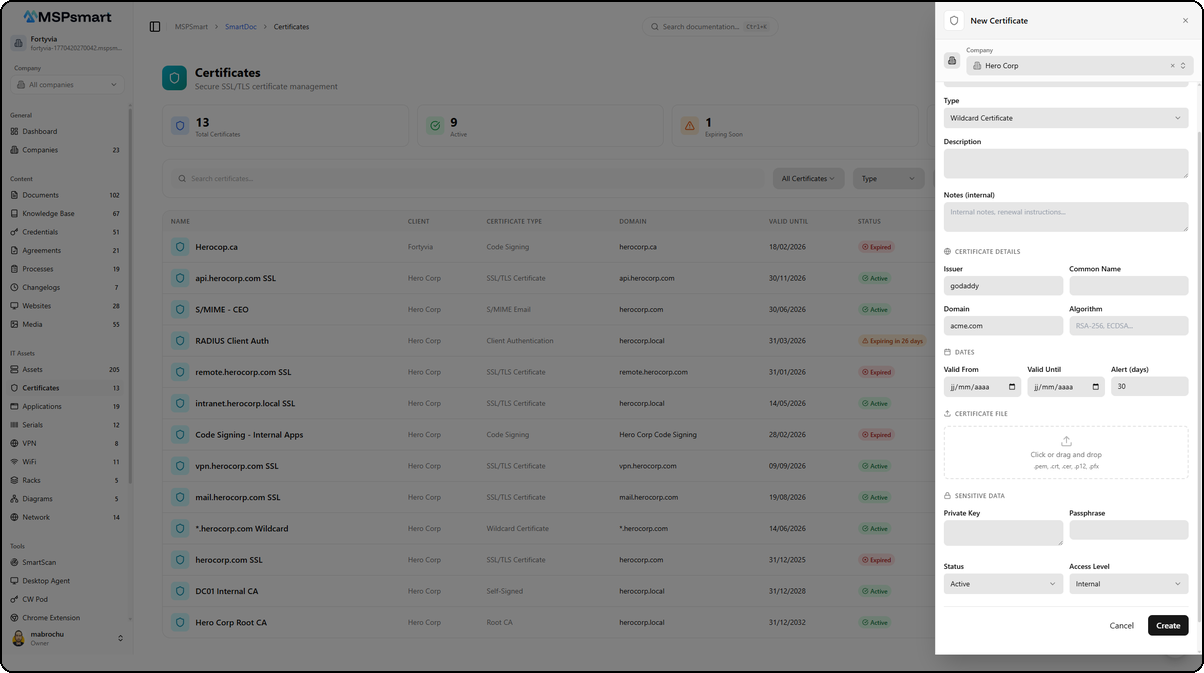
The form is organized into sections:
- Company — Select the associated client via a dropdown
- Type — Choose the certificate type (Wildcard Certificate, SSL/TLS, Code Signing, etc.)
- Description — Free text field to describe the certificate's purpose
- Notes (internal) — Notes visible only to MSP technicians
- Certificate Details — Issuer, Common Name, Domain, Algorithm
- Dates — Validity start date (Valid From) and expiration date (Valid Until)
- Certificate File — Drag-and-drop zone to upload the certificate file (PEM, PFX, P7B...)
- Sensitive Data — Private key and Passphrase, encrypted before storage
- Status and Access Level — Certificate status and visibility level
Click Create to save the certificate. Sensitive data is automatically encrypted with AES-256-GCM before being persisted.
Certificate Detail
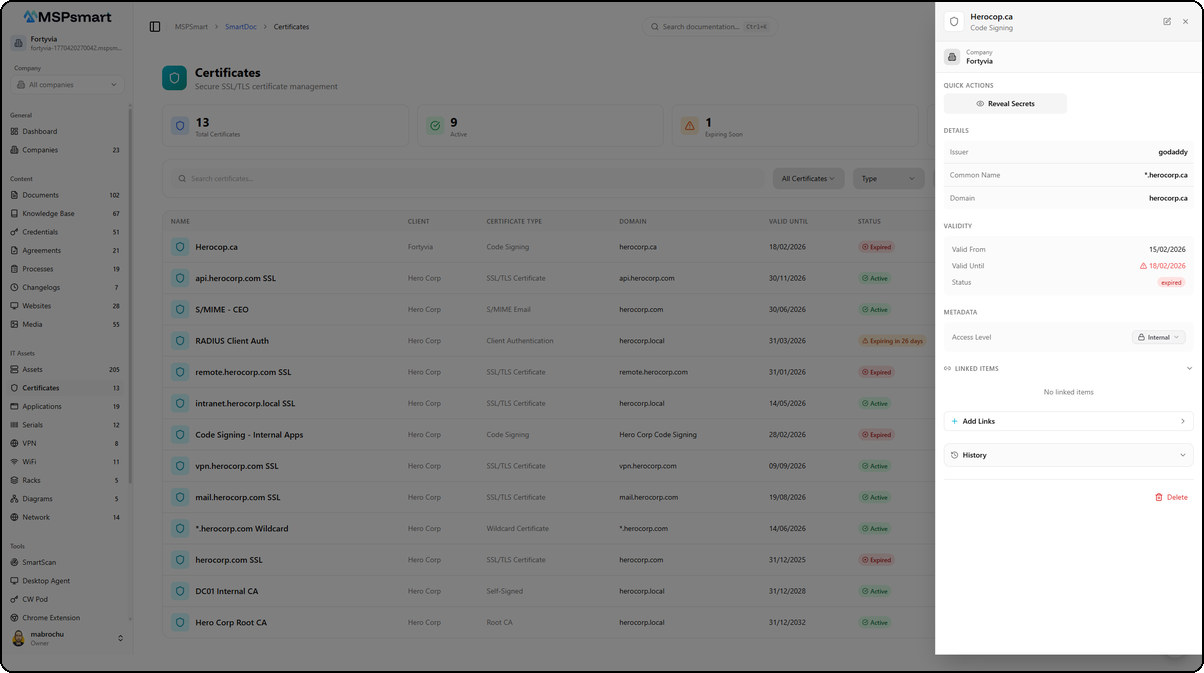
Click on a certificate in the list to open the detail side panel. This panel presents all certificate information in a structured layout.
Header
The header displays the certificate name (e.g., Herocop.ca) and its type (e.g., Code Signing). The associated company is shown below (e.g., Fortyvia). Edit and close buttons are available in the top right corner.
Quick Actions
The Reveal Secrets button temporarily displays the encrypted sensitive data (private key, passphrase). This action is logged in the audit trail.
Information Sections
| Section | Content |
|---|---|
| Details | Issuer, Common Name, Domain |
| Validity | Start date, expiration date with alert indicator, status (active/expired) |
| Metadata | Access level changeable via dropdown (Internal/Client) |
Linked Items
The Linked Items section displays the number of items linked to the certificate with a counter badge. Certificates can be linked to assets, documents, and credentials to create cross-references in your documentation.
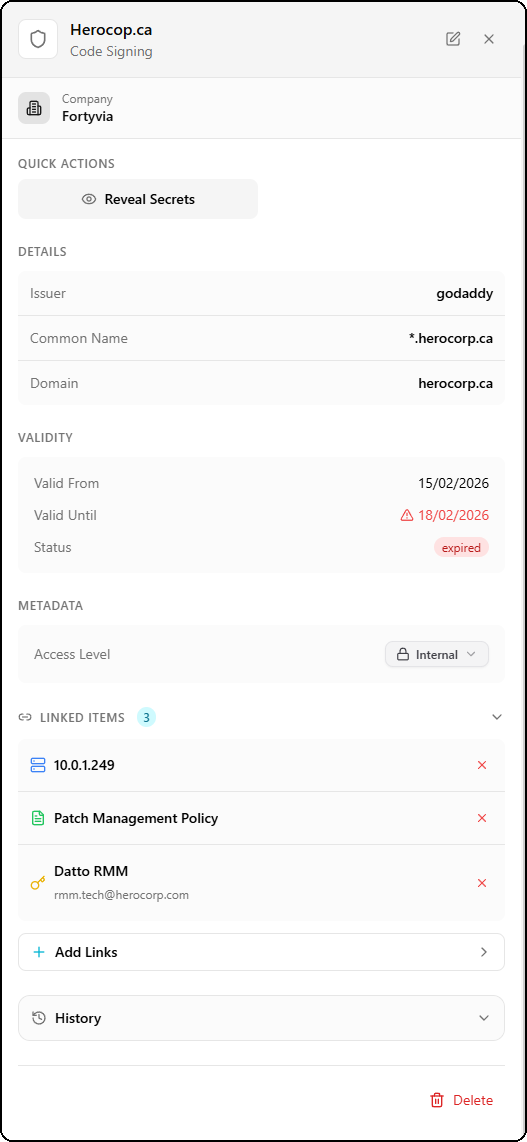
In this example, the "Herocop.ca" certificate is linked to three items:
- 10.0.1.249 — a network asset
- Patch Management Policy — a SmartDoc document
- Datto RMM — a credential with the associated email
Adding Links
The + Add Links button opens a dialog to search and select items to link across three categories:
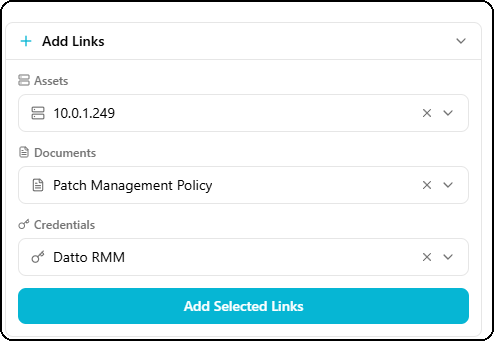
| Category | Description |
|---|---|
| Assets | Physical or virtual equipment from the inventory |
| Documents | SmartDoc documents (policies, procedures, guides) |
| Credentials | Credentials from the password vault |
Each item can be selected via a searchable dropdown. Click Add Selected Links to confirm the associations.
Access History
The History section at the bottom of the panel displays the certificate access log with the total number of entries.
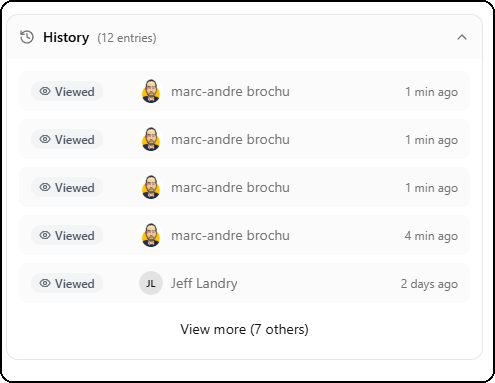
Each entry shows:
- The action type (Viewed, Revealed, Created, Updated, Deleted)
- The avatar and name of the user who performed the action
- The time elapsed since the action (e.g., 1 min ago, 2 days ago)
The View more link lets you view the full history when the list is long.
Fields and Information
Identification
| Field | Description | Required |
|---|---|---|
| Name | Descriptive name of the certificate | Yes |
| Name (FR) | Name in French | No |
| Type | Certificate type (SSL DV, EV, Wildcard...) | No |
| Company | Associated client company | No |
| Description | Detailed description (up to 10,000 characters) | No |
| Description (FR) | French version | No |
| Notes | Internal notes (up to 10,000 characters) | No |
Certificate Information
| Field | Description |
|---|---|
| Issuer | Certification authority (Let's Encrypt, DigiCert, Sectigo...) |
| Subject | Full certificate subject |
| Common Name (CN) | Certificate Common Name |
| Domain | Primary protected domain |
| Serial number | Unique certificate identifier |
| Algorithm | RSA, ECDSA, etc. |
| Key size | 2048, 4096 bits, etc. |
| SHA-256 fingerprint | Certificate identification hash |
| SHA-1 fingerprint | Alternative identification hash |
Validity
| Field | Description |
|---|---|
| Valid from | Validity start date |
| Valid until | Expiration date |
| Alert threshold (days) | Number of days before expiration that triggers the alert (default: 30) |
| Auto-renewal | Indicates whether renewal is managed automatically |
Status and Classification
| Field | Description |
|---|---|
| Status | active, expired, revoked, pending, archived |
| Access level | Certificate visibility (internal, client, public) |
| Tags | Labels for organization and filtering |
| Custom fields | Additional fields defined by the user |
Encrypted Data (Sensitive)
These fields are never displayed in plain text in the list or standard details:
| Field | Description |
|---|---|
| Private key | RSA/ECDSA private key (AES-256-GCM encrypted) |
| Passphrase | Private key password (encrypted) |
| Certificate chain | Intermediate/root certificates (encrypted) |
Access Statistics
| Field | Description |
|---|---|
| Access count | Counter for certificate views |
| Last accessed | Timestamp of the last access |
File Management
Accepted Formats
Accepted certificate file formats are:
| Format | Extension | Description |
|---|---|---|
| PEM | .pem, .crt, .cer | Base64 text format |
| PKCS#12 | .pfx, .p12 | Certificate + private key bundled |
| PKCS#7 | .p7b, .p7c | Certificate chain |
| DER | .der | Binary format |
| PDF documents | .pdf | Certificate documentation |
Maximum size: 50 MB per file.
Security Validation
During upload, the file is validated by magic number verification (binary content) in addition to the extension, to prevent MIME type substitution attacks. A file whose content does not match the declared extension is rejected.
The filename is sanitized to prevent path traversal attacks: only alphanumeric characters, dots, hyphens, and underscores are retained.
Storage
Files are stored in the isolated tenant MinIO bucket (tenant-{tenantId}), under the path smartdoc/certificates/{id}/certificate.{ext}. The tenant's storage quota is checked before each upload.
Download
The download button (downward arrow icon) is displayed only if a file is associated with the certificate. The download is performed via a temporary presigned URL.
Revealing Secrets
The Reveal action (key icon) temporarily displays the encrypted sensitive data of a certificate.
Behavior
- The user clicks the key icon
- The system decrypts the private key and passphrase from the database
- The data is displayed in plain text for 60 seconds
- After 60 seconds, it is automatically hidden
- The user can click the key icon again to hide it manually
Traceability
Each use of the Reveal function is recorded in the access log with:
- The user's identifier
- The exact timestamp
- The IP address
- The browser used
Bulk Actions
In selection mode (available in table view), the following actions can be applied to multiple certificates simultaneously:
| Action | Description |
|---|---|
| Change access level | Modify visibility in bulk |
| Change status | Update status (Active, Expired, Revoked) |
| Archive | Mark as archived |
| Duplicate | Create copies |
| Delete | Permanently delete |
Access Levels
Certificates support three access levels:
| Level | Description |
|---|---|
internal | Visible only to MSP technicians (default) |
client | Visible via the client portal (if a client company is associated) |
public | Publicly accessible (rare use, e.g., public root certificate) |
Sensitive data (private key, passphrase) is never exposed to the client portal, regardless of the access level.
Traceability and Audit
All operations on certificates are recorded in two tables:
General Audit Log (smartdoc_audit_log)
Records CRUD operations:
- Creation, viewing, modification, deletion
- User and client company identifiers
- IP address and user-agent
Certificate Access Log (smartdoc_certificate_access_log)
Dedicated table for sensitive accesses:
- Access type:
view,reveal,create,update,delete - Optional reason provided by the user during reveal
- Success or failure of the operation with reason in case of failure
- Cumulative access counter (
access_count)
Best Practices
- Always fill in the expiration date to benefit from automatic alerts
- Configure an appropriate alert threshold: 30 days for most certificates, 60-90 days for critical certificates
- Store the private key and passphrase in SmartDoc to centralize documentation - they are encrypted and secured
- Use tags to categorize your certificates (e.g.,
production,staging,wildcard,code-signing) - Keep the Internal access level for certificates with a private key - never publish them to Client level
- The Client access level can be used for public certificates (without a private key) that the client needs to be able to view
- Perform regular reviews of the list of soon-to-expire certificates (dashboard)
- Upload the certificate file to have a direct download available in case reinstallation is needed
Last updated: March 2026