Serials
The Serial Numbers module in SmartDoc allows you to centralize and secure the serial numbers of all hardware equipment belonging to your clients. It tracks warranties, support contracts, and purchase information, with automatic alerts before warranty expiration.
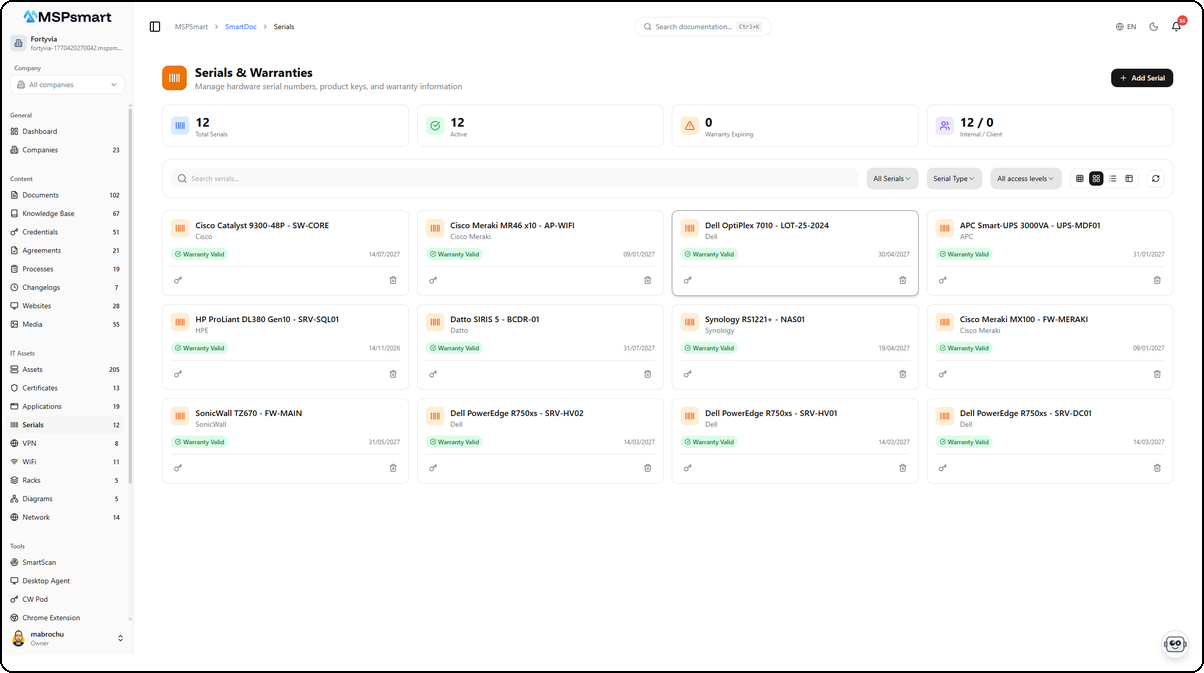
Overview
The Serial Numbers module is designed for MSP technicians who need to quickly retrieve equipment information: a serial number for a support request, a warranty end date to plan a replacement, or supplier contact details for a parts order.
Serial numbers are encrypted with AES-256-GCM at the database level — they never appear in lists and are only revealed upon explicit request with full traceability.
Key Features
Serial Number Directory
Each entry in the module can contain:
- The equipment serial number (encrypted)
- Manufacturer and model
- Product name and part number
- Purchase date and price
- Supplier information
- Invoice number
Warranty Management
Warranty tracking is one of the module's core functions:
- Warranty start and end dates
- Warranty type (manufacturer warranty, extended warranty, NBD, etc.)
- Configurable alert period before expiration (default: 30 days)
- Dedicated "Expiring" view listing warranties expiring within the next N days
Warranty statuses displayed dynamically in the interface:
- Valid (green) — warranty currently active
- Expiring soon (orange) — expiration within 30 days or less
- Expired (red) — end date has passed
- Transferred (blue) — equipment transferred
- Decommissioned (grey) — equipment retired
Support Management
In addition to warranty tracking, you can document:
- The support contract
- Support level (Standard, Premium, 24/7, etc.)
- Support expiration date
Customizable Serial Number Types
Entries can be categorized by predefined or custom type: Server, Workstation, Printer, Monitor, Router, Switch, UPS, Camera, Tablet, Phone, etc. Each type can have a distinctive icon and color.
Equipment Statuses
Five statuses allow you to track the lifecycle of each piece of equipment:
| Status | Meaning |
|---|---|
| Active | Equipment in service |
| Expired | Warranty or contract expired |
| Transferred | Equipment transferred to another client or site |
| Decommissioned | Equipment removed from inventory |
| Archived | Retained for historical purposes |
User Interface
Navigation
The module is accessible from the SmartDoc side menu, under IT Assets > Serial Numbers. The active company context (top selector) automatically filters the displayed entries.
Display Modes
Four modes are available, selectable from the buttons in the filter bar:
| Mode | Icon | Description |
|---|---|---|
| Small cards | Compact grid (4-6 columns) | Ultra-compact view with name and warranty badge |
| Medium cards | Grid (3-4 columns) | Name, manufacturer, warranty end date, status badge |
| Large cards | Grid (2-3 columns) | Full details: type, warranty end date, linked asset, model |
| Table | Tabular view | All columns, default mode |
In Table view, the displayed columns are: Name, Client (if no company filter), Type, Manufacturer / Model, Associated Asset, Warranty End, Status, Access Level, Actions.
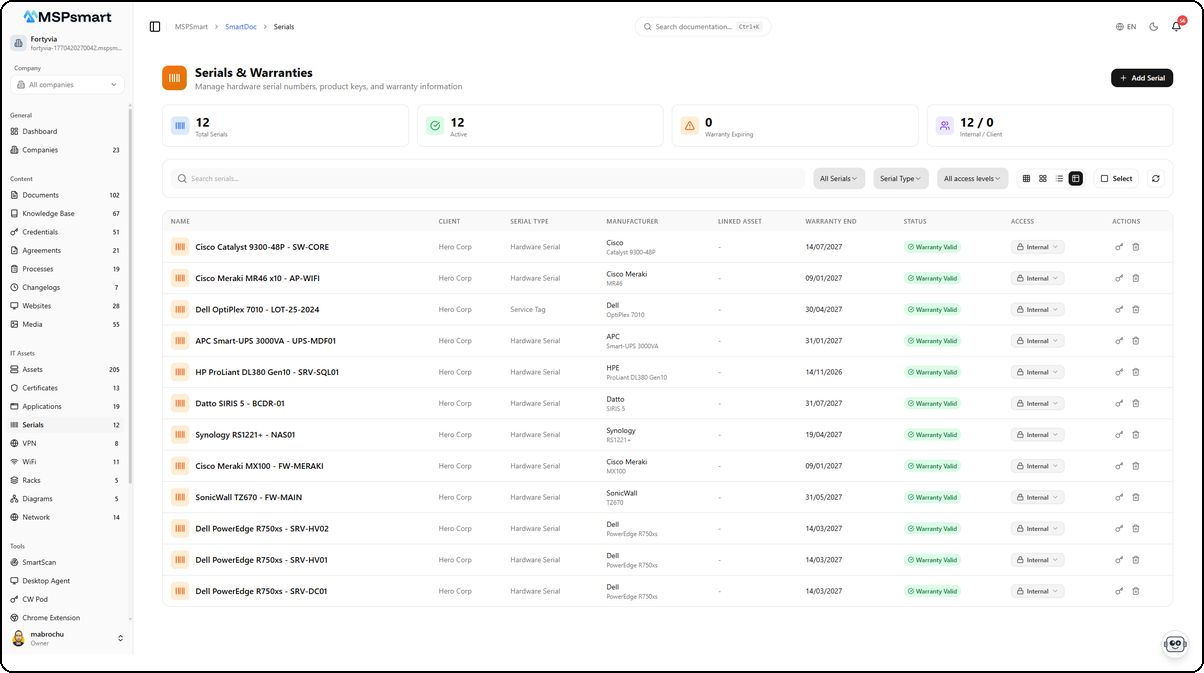
The table view displays all serial numbers with their detailed information. Each row shows the equipment name, client, type (Hardware Serial, Service Tag, License Serial), manufacturer with model, linked asset, warranty end date, and status as a colored badge (Warranty Valid in green). The All Serials, Serial Type, and All access levels filters allow you to quickly narrow down the list.
Statistics Dashboard
At the top of the page, 4 real-time indicators:
- Total serial numbers registered
- Active serial numbers
- Warranties expiring soon (< 30 days)
- Internal / Client breakdown
Available Filters
- Text search — search on name, description, manufacturer, model
- Status filter — All / Active / Expired / Transferred / Decommissioned
- Type filter — filter by equipment category
- Access level filter — Internal / Client / Public
Available Actions
From the list:
- Click on an entry — opens the details side panel
- Key button (Key icon) — reveals the encrypted serial number for 60 seconds
- Delete button — deletion with confirmation
From the side panel:
- View all details
- Edit (edit mode)
- Reveal the serial number
- View the change history
- Delete
Creating a Serial Number
The + Add Serial button opens a side panel that lets you enter all equipment information in a single step.
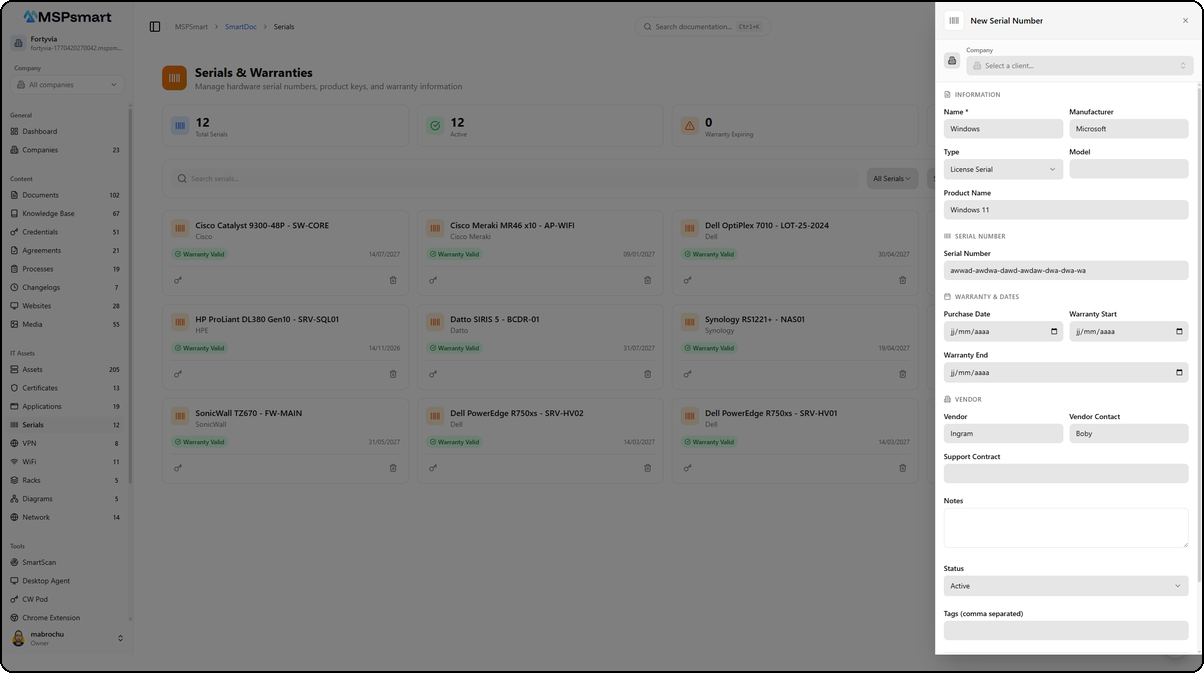
The form is organized into sections:
- Company — Select the associated client via a dropdown
- Information — Equipment name, manufacturer, type (Hardware Serial, License Serial, Service Tag) and model, product name
- Serial Number — Equipment serial number (encrypted before storage)
- Warranty & Dates — Purchase date, warranty start date, and warranty end date
- Vendor — Supplier, supplier contact, and support contract
- Notes — Free text field for additional information
- Status and Tags — Equipment status and labels for classification
Serial Number Detail
Click on an entry in the list to open the detail side panel. This panel presents all equipment information in a structured layout.
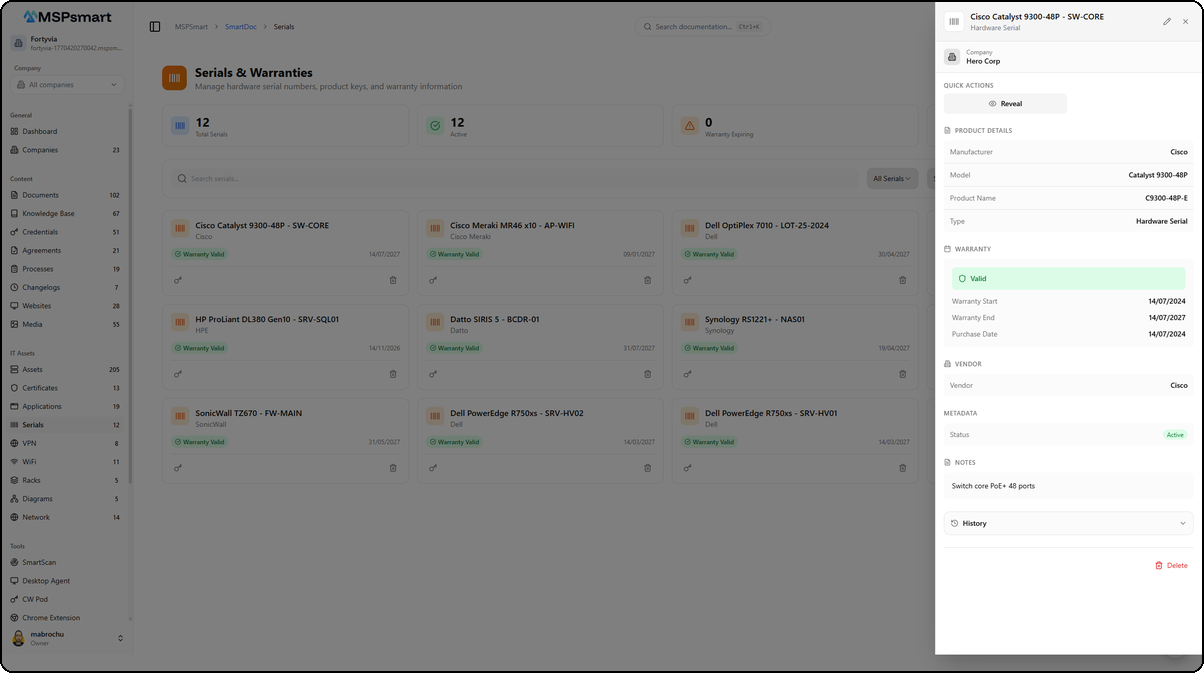
Header
The header displays the equipment name (e.g., Cisco Catalyst 9300-48P - SW-CORE) and its type (e.g., Hardware Serial). The associated company is shown below (e.g., Hero Corp).
Quick Actions
The Reveal button temporarily displays the encrypted serial number for 60 seconds. This action is logged in the audit trail.
Information Sections
| Section | Content |
|---|---|
| Product Details | Manufacturer, model, product name, serial number type |
| Warranty | Status badge (Valid in green), warranty start and end dates, purchase date |
| Vendor | Supplier name |
| Metadata | Status (Active) |
| Notes | Internal notes (e.g., Switch core PoE+ 48 ports) |
Access History
The History section at the bottom of the panel displays the access log.

Each entry shows the action type (Viewed, Revealed, Created, Updated), the user's avatar and name, and the time elapsed since the action.
Fields and Information
Equipment Identification
| Field | Description | Required |
|---|---|---|
| Name | Equipment designation | Yes |
| Name (FR) | Designation in French | No |
| Description | Detailed description | No |
| Serial number | Serial number (AES-256-GCM encrypted) | Yes |
| Manufacturer | Brand/manufacturer | No |
| Model | Model reference | No |
| Product name | Full commercial designation | No |
| Part number | Manufacturer's internal reference | No |
| Type | Equipment category | No |
| Company | Owning client company | No |
| Linked asset | Associated SmartDoc asset | No |
Purchase and Supplier
| Field | Description |
|---|---|
| Purchase date | Transaction date |
| Purchase price | Amount paid |
| Currency | Currency (default: CAD) |
| Supplier | Vendor or distributor name |
| Supplier contact | Name or email of the supplier contact |
| Invoice number | Purchase invoice reference |
Warranty
| Field | Description |
|---|---|
| Warranty start date | Start of the warranty period |
| Warranty end date | End of the warranty period |
| Warranty type | Manufacturer warranty, extended, NBD, etc. |
| Expiration alert (days) | Days before expiration to generate an alert (default: 30) |
Support
| Field | Description |
|---|---|
| Support contract | Contract name or reference |
| Support level | Standard, Premium, 24/7, NBD... |
| Support expiration | Support contract end date |
Organization
| Field | Description |
|---|---|
| Status | active / expired / transferred / retired / archived |
| Access level | internal / client / public |
| Tags | Keywords for grouping and filtering |
| Custom fields | Additional key-value pairs |
Security and Encryption
Serial numbers are sensitive data that uniquely identify a piece of equipment. To prevent accidental exposure:
AES-256-GCM encryption: Each serial number is encrypted with a unique key per tenant before being stored (serial_number_encrypted). The tenant's encryption key is itself encrypted by the KMS before storage.
No exposure in lists: Lists, tables, and cards never display the serial number in plain text. The interface only indicates that the serial number exists.
Controlled disclosure:
- Only users with the
revealpermission can view a serial number - Each disclosure is limited to 60 seconds of display (automatically hidden)
- The system enforces a rate limit: maximum 10 reveals per minute per user
- Each disclosure is recorded in
smartdoc_serial_access_logandsmartdoc_audit_logwith: identity, IP address, user agent, optional reason
Change log: A complete history of all modifications is maintained in smartdoc_serial_history, accessible via the "History" tab in the details panel.
Warranty Tracking
Upcoming Warranty Expiration View
The /expiring endpoint returns equipment whose warranty expires within the next N days (configurable). Results are sorted by ascending expiration date.
Warranty Status Badge
The interface dynamically calculates warranty status from the end date:
- Green — Valid: end date is in the future, outside the alert period
- Orange — Expiring soon: end date within 30 days or less
- Red — Expired: end date has passed
- Blue — Transferred: "transferred" status
- Grey — Decommissioned: "retired" status
Configurable Alerts
The expiry_alert_days value allows you to customize per equipment when the alert should be triggered. For a critical server, you can configure 90 days; for basic equipment, 15 days is sufficient.
Link to Assets
Each serial number can be associated with an existing SmartDoc asset (workstation, server, etc.). This bidirectional link allows you to:
- Retrieve the serial number from the asset record
- Retrieve the asset from the serial number record
- Quickly determine which physical equipment corresponds to which asset in the inventory
Bulk Actions
Selection mode (the Select button in Table view) allows you to act on multiple entries at once (up to 100 items):
| Action | Description |
|---|---|
| Change access level | Modify the visibility of a selection |
| Change status | Update the status of multiple entries |
| Add tags | Add tags to a selection |
| Remove tags | Remove tags from a selection |
| Change company | Reassign to another client company |
| Archive | Set status to "archived" |
| Duplicate | Create a copy (the encrypted serial number is preserved) |
| Delete | Permanently delete the selection |
Access Levels
| Level | Description |
|---|---|
| Internal | Visible only to MSP technicians (recommended) |
| Client | Accessible on the client portal of the associated company |
| Public | Visible without authentication (not recommended for serial numbers) |
The access level can be changed directly from the badge in the list, without opening the full form.
SmartBot Integration
All module entries are indexed in SmartDoc's RAG engine, enabling the SmartBot chatbot to answer questions such as:
- "What is the warranty end date for the Dell server at Durand company?"
- "Which equipment has warranties expiring this quarter?"
- "Who is the supplier of the Cisco switch SN-XXXX?"
Indexing is automatic with each entry creation, modification, or deletion. Serial numbers themselves are not included in the RAG index for security reasons — only metadata (name, manufacturer, model, dates) is indexed.
Best Practices
- Always enter the warranty end date — this is the most critical information for planning renewals
- Associate each serial number with an asset to maintain inventory consistency
- Configure custom alerts: 90 days for servers and critical network equipment, 30 days for standard equipment
- Use equipment types to facilitate searching and category-based reporting
- Document the supplier and invoice number to simplify warranty return procedures (RMA)
- Keep the access level at Internal for the vast majority of serial numbers
- Use the "Transferred" status rather than deleting, to preserve history when equipment is transferred between clients
- Tag equipment with consistent labels (e.g., "critical-server", "server-room-A") to group searches
Last updated: March 2026