VPN
The VPN module in SmartDoc centralizes the management of VPN access configurations for all your clients. Passwords and pre-shared keys (PSK) are encrypted with AES-256-GCM and are only revealed on demand, with complete traceability of every disclosure.
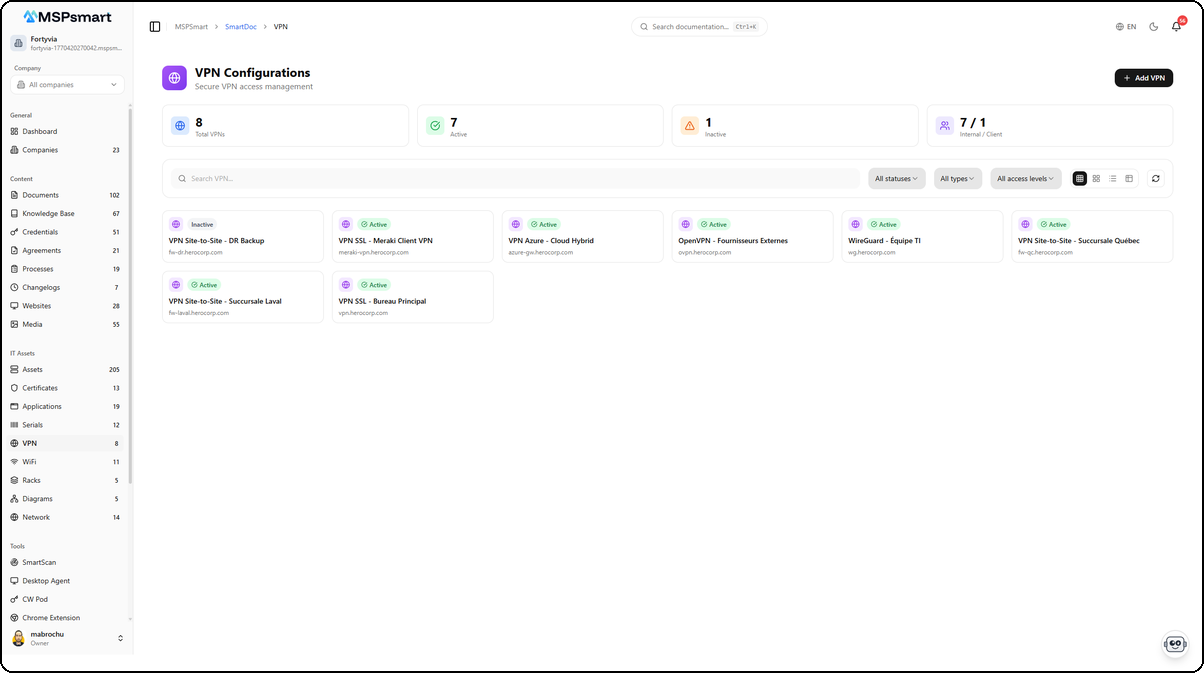
Overview
The VPN Configurations module is designed for MSP technicians who need to maintain and quickly access the VPN connection parameters of their clients. Each VPN configuration can be associated with a client company, categorized by type (OpenVPN, IPsec, SSL VPN, WireGuard, etc.), and linked to an SSL certificate and/or a knowledge base article.
Sensitive information — password and PSK — is encrypted and is only accessible to users with the required permissions. Each disclosure is recorded with the user's identity, their IP address, and an optional reason.
Key Features
Centralized VPN Access Directory
For each VPN configuration, the module stores:
- Connection parameters (server, port, protocol)
- Username
- Password (encrypted)
- Pre-shared key PSK (encrypted)
- Advanced custom configuration (free-form JSON)
- Usage notes
Flexible VPN Types
Configurations are categorized by type, with the option for custom types. System types include: OpenVPN, IPsec/IKEv2, SSL VPN, WireGuard, L2TP/IPsec, PPTP, Site-to-Site, Client-to-Site, Cisco AnyConnect, Palo Alto GlobalProtect, Fortinet FortiClient, SonicWall.
Supported Protocols
Each configuration can specify the transport protocol:
- UDP (recommended for performance)
- TCP (for restrictive networks)
- Both (
Both)
Configuration Statuses
| Status | Description |
|---|---|
| Active | Configuration in service |
| Inactive | Configuration temporarily suspended |
| Archived | Configuration retained for historical purposes |
Team Notifications
Created, modified, and deleted operations publish NATS events that can trigger Teams notifications, keeping the team informed of important changes. Password and PSK disclosures also publish specific events for security monitoring.
User Interface
Navigation
The VPN module is accessible from the SmartDoc side menu, under IT Assets > VPN. The active company context (top-of-page selector) automatically filters the displayed configurations.
Display Modes
Four visual modes are available:
| Mode | Icon | Description |
|---|---|---|
| Small cards | Compact grid (4-6 columns) | Name, status badge, and server |
| Medium cards | Grid (3-4 columns) | Name, type, server:port, client company |
| Large cards | Grid (2-3 columns) | Full details: type, server, protocol, company, associated links |
| Table | Tabular view | Columns: Name, Client, Type, Server, Links, Status, Access, Actions |
Table mode is the default. The Links column visually indicates whether a certificate and/or KB article are associated with the configuration.
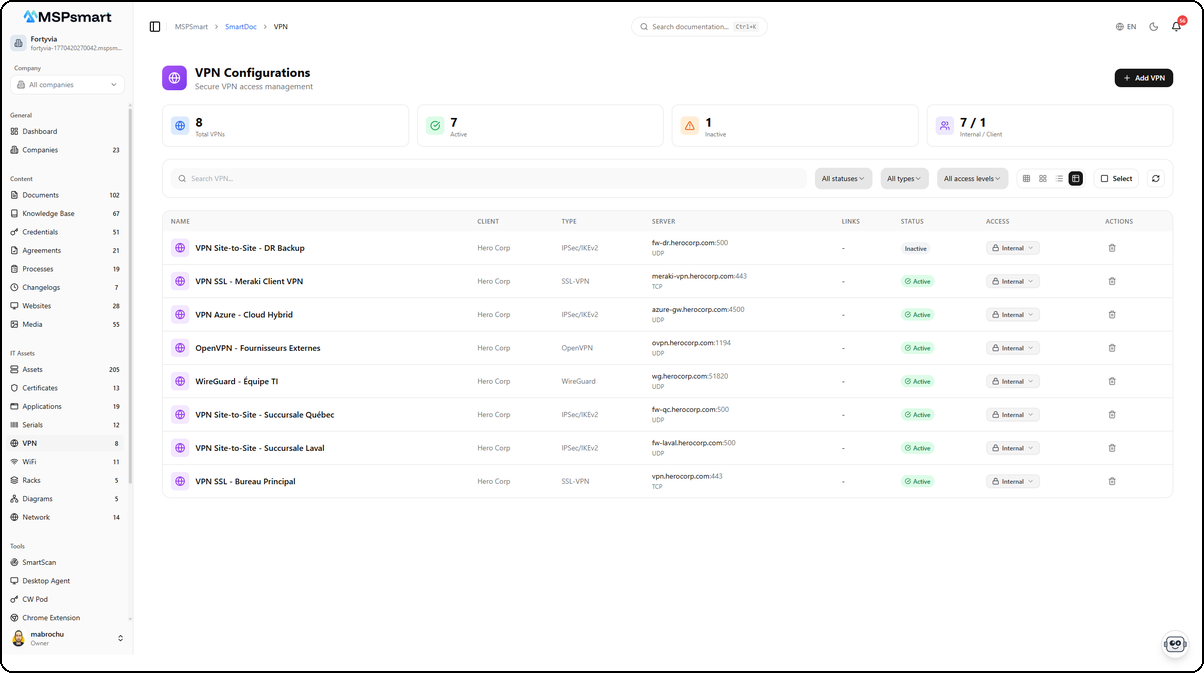
The table view displays all VPN configurations with their detailed information. Each row shows the configuration name, associated client, VPN type (IPSec/IKEv2, SSL-VPN, OpenVPN, WireGuard), server with port and protocol, associated links (certificates, KB articles), status as a colored badge (Active in green, Inactive in red), and access level. The Actions columns provide quick access to reveal secrets, edit, or delete the configuration.
Statistics Dashboard
At the top of the page, 4 real-time metrics:
- Total number of VPN configurations
- Active configurations
- Inactive configurations
- Internal / Client breakdown
Available Filters
- Text search — search on name, description, server
- Status filter — All / Active / Inactive / Archived
- Type filter — filter by VPN category
- Access level filter — Internal / Client / Public
Available Actions
From the list:
- Click on a configuration — opens the details side panel
- Key button (Key icon) — reveals the password and/or PSK (if present), displayed for 60 seconds
- Delete button — deletion with confirmation
From the side panel:
- View all details (server, port, protocol, advanced configuration, notes)
- Edit (edit mode)
- Reveal secrets (password and/or PSK)
- View the access log
- Delete the configuration
Creating a VPN Configuration
The + Add VPN button opens a side panel that lets you enter all configuration information in a single step.
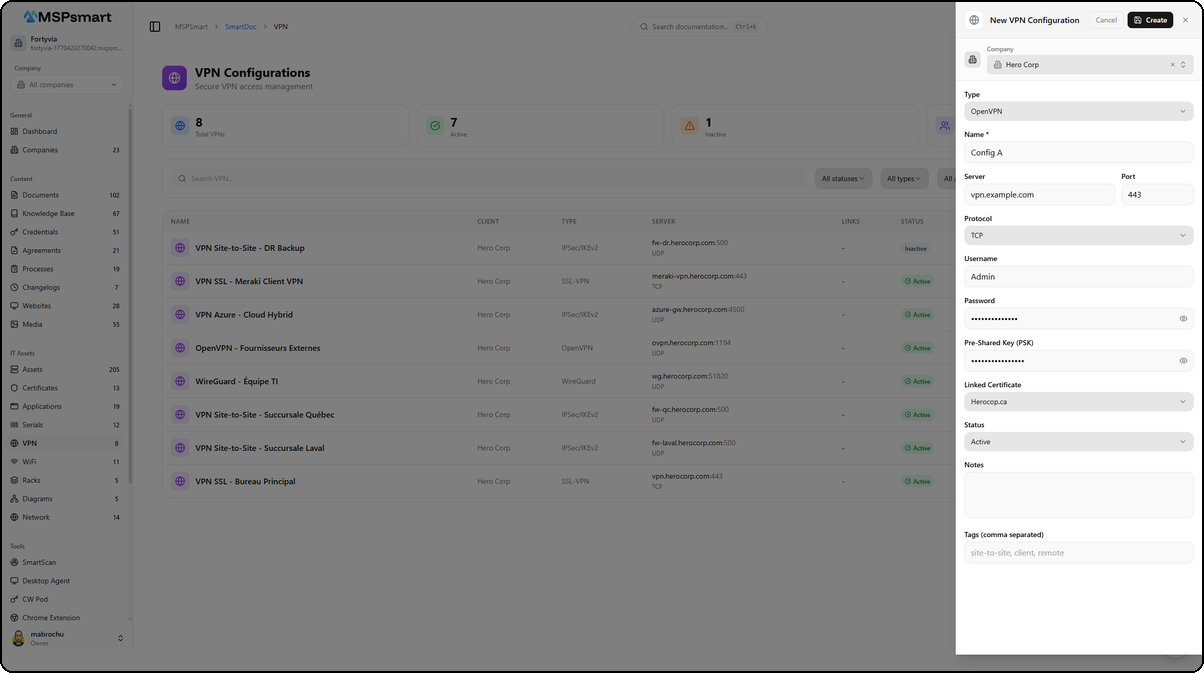
The form is organized into sections:
- Company — Select the associated client via a dropdown
- Information — Configuration name, VPN type (OpenVPN, IPsec/IKEv2, SSL VPN, WireGuard, etc.)
- Connection — Server (IP address or domain name), port, protocol (UDP/TCP/Both)
- Authentication — Username, password (encrypted before storage), and pre-shared key PSK (encrypted before storage)
- Links — Associated SSL/TLS certificate (selectable from the Certificates module)
- Notes — Free text field for connection instructions or additional information
- Status and Tags — Configuration status and labels for classification
Fields and Information
Identification
| Field | Description | Required |
|---|---|---|
| Name | VPN configuration designation | Yes |
| Name (FR) | Designation in French | No |
| Description | Detailed description | No |
| Company | Associated client company | No |
| VPN type | Category (OpenVPN, IPsec, WireGuard, etc.) | No |
| Status | active / inactive / archived | Yes |
| Tags | Keywords for grouping and filtering | No |
Connection Parameters
| Field | Description | Default value |
|---|---|---|
| Server | IP address or domain name of the VPN server | — |
| Port | Connection port | 1194 |
| Protocol | UDP / TCP / Both | UDP |
| Username | Login identifier | — |
| Password | Password (AES-256-GCM encrypted) | — |
| PSK | Pre-shared key (AES-256-GCM encrypted) | — |
Links
| Field | Description |
|---|---|
| Associated certificate | Link to an SSL/TLS certificate in the Certificates module |
| Knowledge base article | Link to a KB article documenting the connection procedure |
Advanced Configuration and Notes
| Field | Description |
|---|---|
| Custom configuration | Free-form JSON fields for VPN-type-specific parameters |
| Notes | General notes about the configuration |
| Notes (FR) | Notes in French |
Custom Fields
Additional key-value pairs can be added to store any information specific to your organization or client.
Security and Encryption
The protection of sensitive data is the absolute priority of the VPN module.
AES-256-GCM Encryption
Two fields are systematically encrypted before storage:
password_encrypted— the VPN connection passwordpsk_encrypted— the Pre-Shared Key
Each tenant has a unique encryption key generated with crypto.randomBytes(32). This key is itself encrypted by the KMS before being stored in the database. Decryption only occurs at the time of explicit disclosure.
Indicators Without Exposure
In lists and tables, the has_password and has_psk fields only indicate the presence of a password or PSK — without ever exposing the value. The reveal button only appears if at least one of these fields is present.
Controlled Disclosure
To access the password or PSK:
- Click the Key button in the list or the details panel
- The decrypted values are displayed in plain text for 60 seconds
- They automatically hide after this delay
Security controls in place:
- Rate limit: maximum 10 reveals per minute per user per configuration
- Access log: each disclosure is recorded in
smartdoc_vpn_access_logwith identity, IP address, user agent, and optional reason - Audit log: the disclosure is also recorded in
smartdoc_audit_log - NATS event: distinct events are published for
vpnPasswordRevealedandvpnPskRevealed, enabling real-time security alerts
Per-Configuration Access Log
Each VPN configuration has an access log that can be viewed via the dedicated tab in the details panel. This log records all operations performed on the configuration (creation, modification, view, disclosure, deletion) with the 100 most recent entries.
Supported VPN Types
VPN types are managed as reference entries that can be global (system) or tenant-specific (custom). Each type can have:
- A name in English and French
- A visual icon
- An identification color
Predefined system types cover the main protocols and market solutions. MSP administrators can create types specific to their client environments.
Links to Other Modules
Certificates Module
A VPN configuration can be associated with an SSL/TLS certificate documented in SmartDoc's Certificates module. This link is visible in the Links column of the table and allows you to navigate directly to the certificate record.
Typical use case: an SSL VPN uses a specific client certificate. Documenting this link makes it possible to know which VPN will be affected if the certificate expires.
Knowledge Base (KB)
A VPN configuration can be linked to a KB article that documents the connection procedure, VPN client installation prerequisites, or the troubleshooting process. This link is visible in the Links column of the table.
Typical use case: create a KB article "How to connect to CompanyX's VPN" and link it to the relevant VPN configuration, so that technicians have all the information in one place.
Bulk Actions
Selection mode (the Select button in Table view) allows you to act on multiple configurations simultaneously (up to 100 items):
| Action | Description |
|---|---|
| Change access level | Modify the visibility of a selection |
| Change status | Update the status of multiple configurations |
| Add tags | Add tags to a selection |
| Remove tags | Remove tags from a selection |
| Change company | Reassign to another client company |
| Archive | Set status to "archived" |
| Duplicate | Create a copy (encrypted secrets are copied as-is) |
| Delete | Permanent deletion with RAG index cleanup |
Bulk operations are also recorded in the audit log with the number of items processed.
Access Levels
| Level | Description |
|---|---|
| Internal | Visible only to MSP technicians (recommended for VPN configurations) |
| Client | Accessible on the client portal of the associated company |
| Public | Visible without authentication (strongly not recommended for VPN configurations) |
The access level can be changed directly from the badge in the list. For VPN configurations, the Internal level is the default value and the security recommendation.
SmartBot Integration
All VPN configurations are indexed in SmartDoc's RAG engine (metadata only, never the secrets). The SmartBot chatbot can answer questions such as:
- "What is the VPN server for CompanyX?"
- "On which port does the SSL VPN for the Montreal branch connect?"
- "Which VPNs use the UDP protocol?"
- "What procedure should I follow to connect a new employee to CompanyY's VPN?"
Passwords and PSKs are not included in the semantic index. Indexing is performed automatically with each creation, modification, or deletion, and deletions clean up the index.
Best Practices
- Always use the Internal access level for VPN configurations — this information should not be accessible on the client portal without an explicit reason
- Link a KB article to each VPN configuration so that technicians have connection procedures without having to search elsewhere
- Link the SSL certificate used by the VPN to anticipate the impact of a certificate expiration
- Document the protocol and port precisely — this information is critical during network troubleshooting
- Enter a reason when disclosing secrets to facilitate subsequent security audits
- Use tags to categorize VPNs: "site-to-site", "remote-access", "client-vpn", "datacenter"
- Review the access log periodically to detect unusual access to sensitive configurations
- Archive rather than delete deactivated VPN configurations to preserve history
- Test the configuration before archiving it to ensure the information is valid and the VPN responds
- Configure Teams alerts to be notified of each password or PSK disclosure in production
Last updated: March 2026