Wifi
The WiFi module in SmartDoc allows you to centralize and securely manage all wireless network configurations for your clients. Passwords are encrypted with AES-256-GCM and are only revealed on demand, with full access traceability.
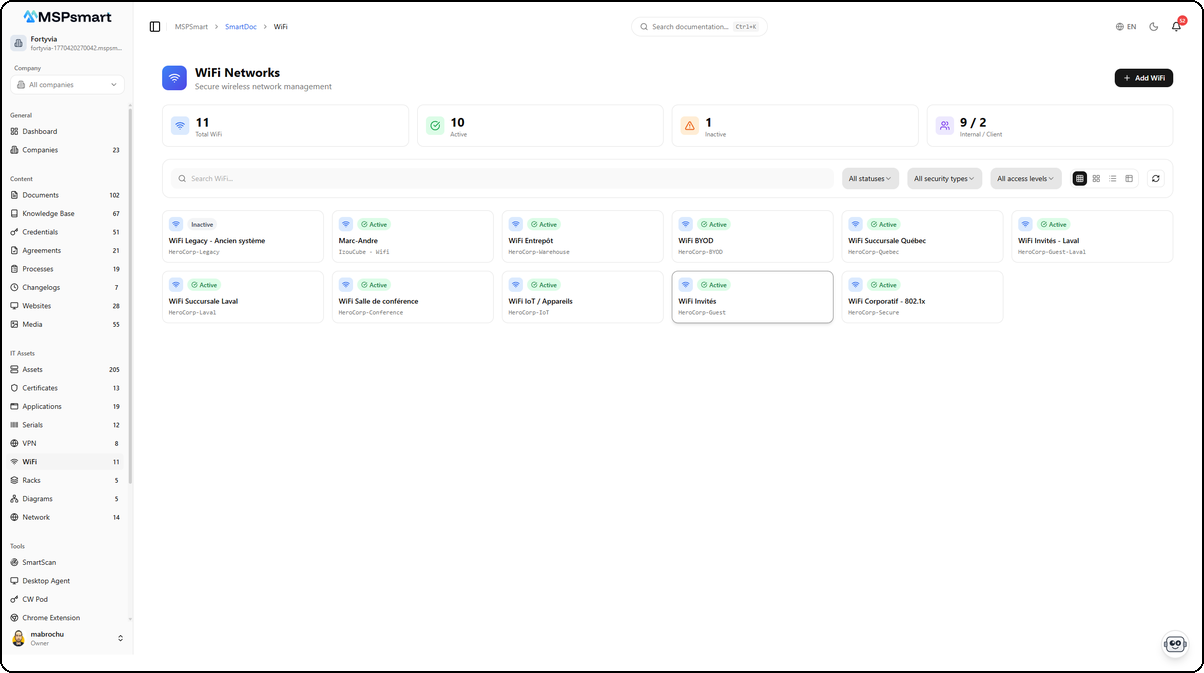
Overview
The WiFi module centralizes all wireless connectivity information: SSID, security type, frequency band, channel, VLAN, IP range, and password. It is designed for MSP technicians who manage dozens or hundreds of client sites and need to quickly retrieve a network configuration without searching through spreadsheets.
Each WiFi record is:
- Associated with a client (company) for account-based organization
- Password-encrypted (AES-256-GCM with a unique encryption key per tenant)
- Indexed for vector search so it can be queried by DocBot/AI
- Audited: every password view or reveal is logged
Key Features
WiFi Configuration Management
Create, edit, and delete WiFi entries for each of your clients. Each configuration captures all the technical information needed to connect to or reconfigure a network: SSID, frequency band (2.4 GHz, 5 GHz, 6 GHz, Dual, Tri), channel, associated VLAN, IP address range, and a hidden network indicator (hidden SSID).
Password Encryption
WiFi passwords are never stored in plain text. They are encrypted with AES-256-GCM using a unique encryption key per tenant, itself protected by the KMS service. To view a password, the user must trigger an explicit "Reveal" action, which generates an entry in the access log.
The revealed password is displayed for 60 seconds and then automatically hidden.
WiFi QR Code
From the detail panel of a WiFi network, it is possible to generate a direct connection QR code. This QR code encodes the connection information (SSID, revealed password, security type) in the standard format recognized by Android and iOS devices. Convenient for facilitating device connections on client sites.
Security Types
The system manages a configurable list of security types (WPA2-Personal, WPA3-Personal, WPA2-Enterprise, WPA3-Enterprise, WEP, Open, etc.). Each type is associated with an icon and a color for quick visual identification in the list.
Access Levels
Each WiFi network can be tagged with an access level:
- Internal: visible only to the MSP team
- Client: shareable with client contacts via the portal
- Public: accessible without restriction
Tags
WiFi configurations support free-form tags to facilitate grouping and searching (for example: "main-office", "guests", "IoT", "enhanced-security").
DocBot / AI Integration
WiFi data is indexed for semantic search by SmartDoc's RAG engine. DocBot can answer questions such as "What is the WiFi password for the Montreal office of company XYZ?" by drawing on these records.
User Interface
Navigation
Access via the SmartDoc sidebar: SmartDoc > WiFi
If a client is selected in the company selector at the top of the page, the list automatically filters to show only that client's WiFi networks.
Display Modes
Four display modes are available via the control buttons at the top right of the list:
| Mode | Description |
|---|---|
| Small cards | Dense grid, up to 6 columns, shows name and SSID |
| Medium cards | Balanced grid, 4 columns, with security type and client |
| Large cards | Detailed view, 3 columns, with band, channel, and VLAN |
| Table | One row per entry with all columns, multi-select mode |
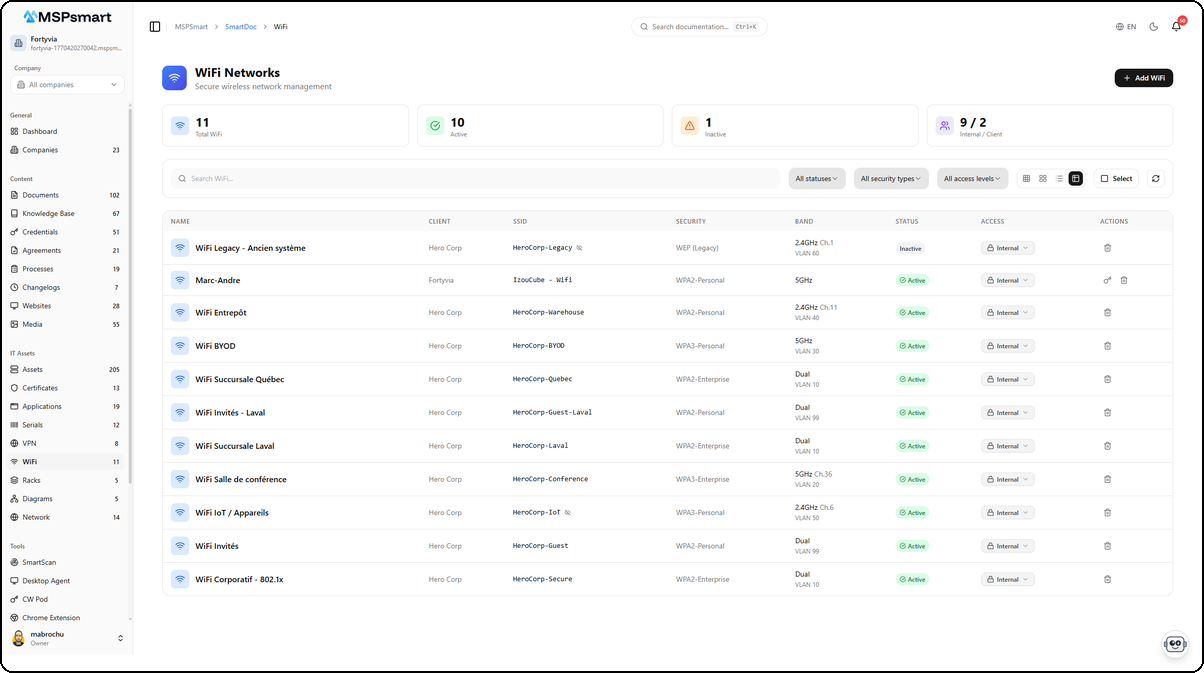
The table view displays all WiFi networks with their detailed information. Each row shows the network name, associated client, SSID, security type (WPA2-Personal, WPA2-Enterprise, WPA3-Personal, WPA3-Enterprise, WEP), frequency band with channel and VLAN, status (Active in green, Inactive in grey), and access level. An icon indicates whether the SSID is hidden. The Actions columns provide quick access to reveal the password, edit, or delete the configuration.
Statistics Dashboard
At the top of the page, a banner with 4 indicators shows:
- Total number of WiFi networks
- Number of active networks
- Number of inactive networks
- Internal / client breakdown
Search Bar and Filters
- Text search: full-text search on name, SSID, descriptions, and notes
- Status filter: Active, Inactive, Archived, or all
- Security type filter: filter by protocol (WPA2, WPA3, etc.)
- Access level filter: Internal, Client, Public
Detail Panel (Slide Panel)
Clicking on a WiFi entry opens a side panel without leaving the page. This panel offers three tabs:
- View mode: displays all non-sensitive information, the "Reveal password" button, access history, and the QR code generator
- Edit mode: full form to modify the entry
- Create mode: blank form to add a new network
Available Actions per Entry
- Click on name: opens the detail panel in view mode
- Key icon (padlock): reveals the encrypted password
- Trash icon: deletes the entry (confirmation required)
- Access level badge: direct click to change the level (if permissions allow)
Creating a WiFi Network
The + Add WiFi button opens a side panel that lets you enter all network information in a single step.
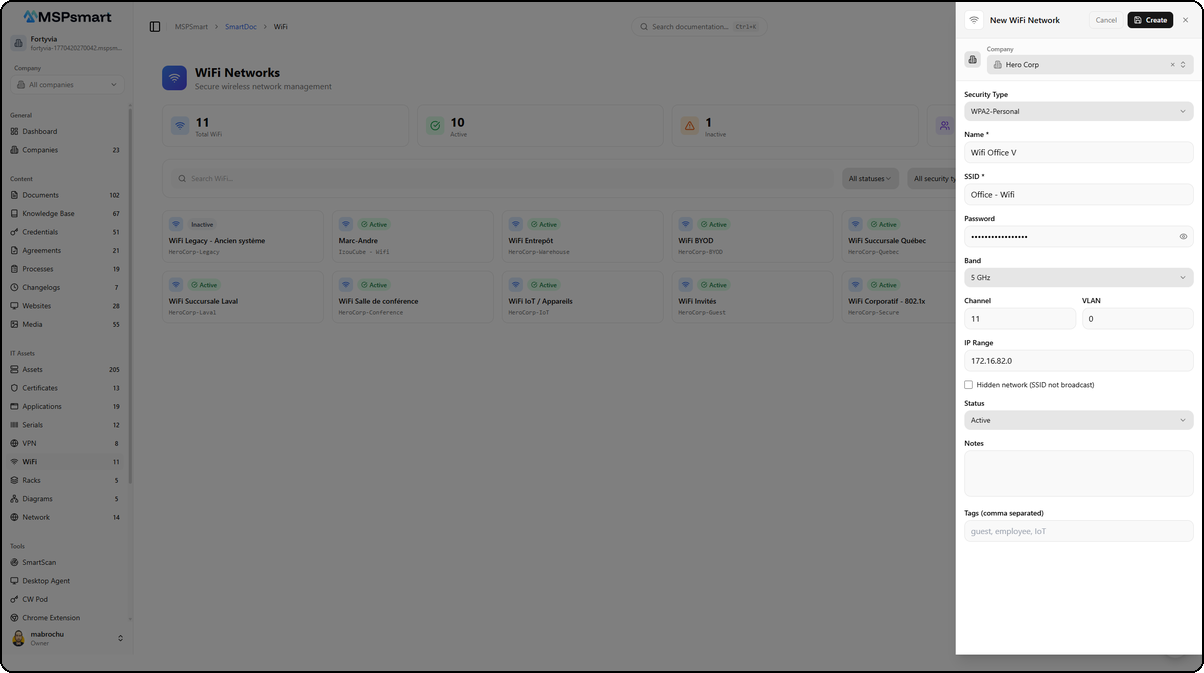
The form is organized into sections:
- Company — Select the associated client via a dropdown
- Security Type — Network security type (WPA2-Personal, WPA3-Enterprise, etc.)
- Name and SSID — Descriptive configuration name and wireless network identifier
- Password — WiFi password (encrypted before storage, with visibility toggle)
- Band — Frequency band (2.4 GHz, 5 GHz, 6 GHz, Dual, Tri)
- Channel and VLAN — Radio channel and associated VLAN identifier
- IP Range — Network IP address range
- Hidden network — Option to indicate the SSID is not broadcast
- Status — Configuration status (Active, Inactive, Archived)
- Notes and Tags — Free-form notes and labels for classification
WiFi Network Detail
Click on a network in the list to open the detail side panel. This panel presents all network information in a structured layout.
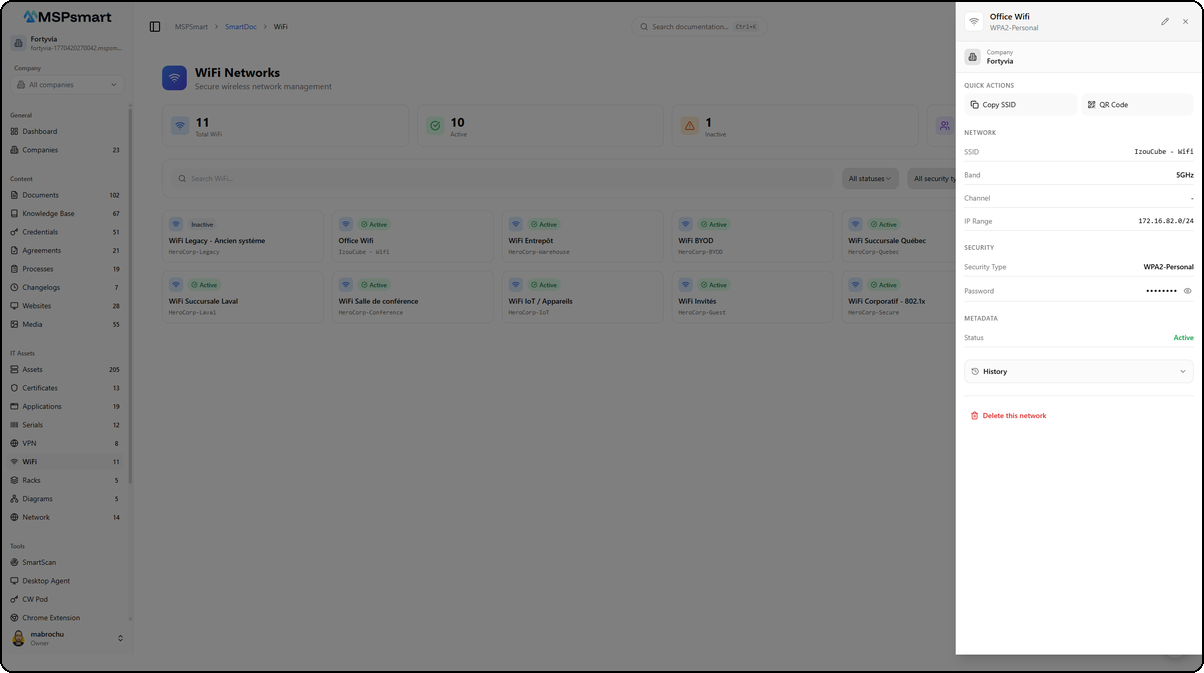
Header
The header displays the network name (e.g., Office Wifi) and the security type (e.g., WPA2-Personal). The associated company is shown below (e.g., Fortyvia).
Quick Actions
Two quick action buttons are available:
- Copy SSID — copies the SSID to the clipboard in one click
- QR Code — generates a direct connection QR code scannable by mobile devices
WiFi QR Code
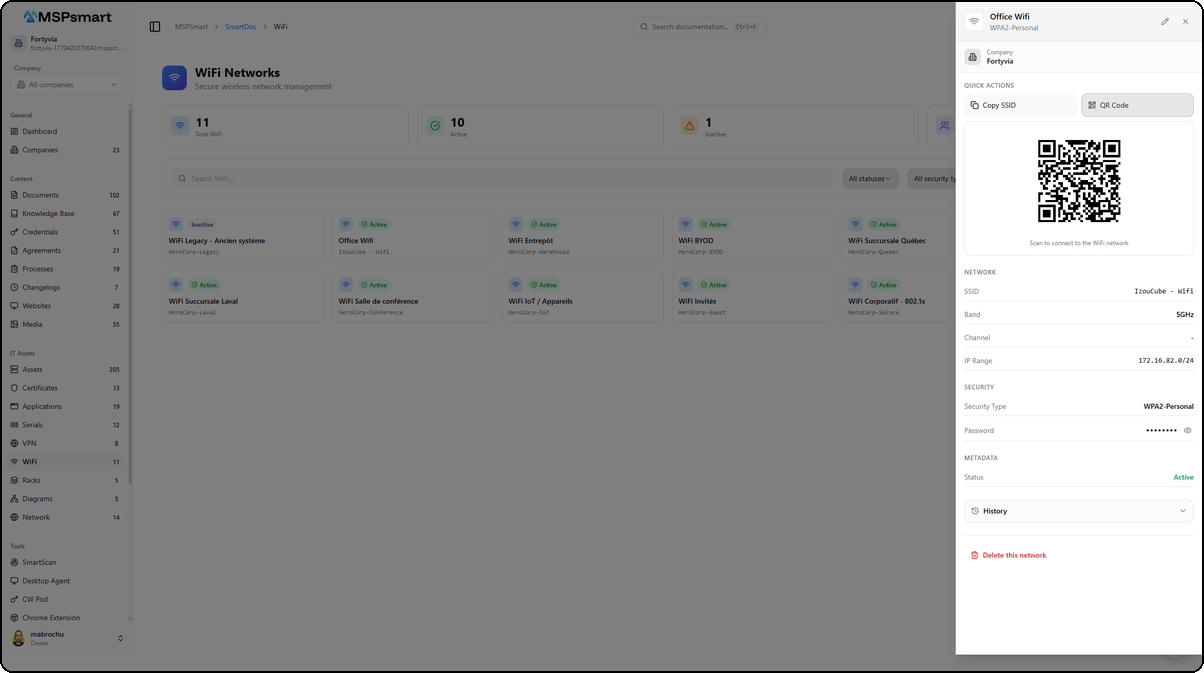
The QR Code button displays a QR code directly in the detail panel. This code encodes the connection information (SSID, password, security type) in the standard format recognized by Android and iOS. Devices can scan the code to automatically connect to the network without manually entering the password.
Information Sections
| Section | Content |
|---|---|
| Network | SSID, frequency band, channel, IP range |
| Security | Security type, password (masked with reveal button) |
| Metadata | Status (Active) |
Access History
The History section at the bottom of the panel displays the WiFi network access log. Each entry shows the action type (Viewed, Revealed, Created, Updated), the user, and the time elapsed since the action.
Fields and Information
| Field | Description | Required |
|---|---|---|
| Name | Descriptive name for the configuration (e.g., "Main Office - Guest Network") | Yes |
| FR Name | French translation of the name | No |
| Client | Associated client company | No |
| SSID | Wireless network identifier (network name as it appears) | Yes |
| Password | WiFi password (stored encrypted, never visible in plain text in the list) | No |
| Security Type | Encryption protocol (WPA2-Personal, WPA3-Enterprise, etc.) | No |
| Band | Radio frequency: 2.4 GHz, 5 GHz, 6 GHz, Dual (2.4+5), Tri (2.4+5+6) | No |
| Channel | Radio channel number (1-200) | No |
| VLAN | Associated VLAN identifier (1-4094) | No |
| IP Range | Network IP address range (e.g., 192.168.10.0/24) | No |
| Hidden SSID | Indicates whether the network does not broadcast its SSID | No |
| Status | Active, Inactive, or Archived | No |
| Tags | List of free-form keywords to facilitate searching | No |
| Notes | Additional free-form information | No |
| Custom Fields | Additional fields configured by the MSP | No |
Security and Encryption
Encryption Architecture
WiFi password encryption uses a two-level approach:
- Per-tenant encryption key: each MSP has a unique AES-256 key, automatically generated on first use and stored encrypted in the
smartdoc_encryption_keystable - Data encryption: the password is encrypted with AES-256-GCM (Galois/Counter Mode), which guarantees both confidentiality and data integrity. The storage format includes the initialization vector (IV) and the authentication tag.
Access Log
All sensitive operations are recorded in the WiFi access log (smartdoc_wifi_access_log) and in the central audit log (smartdoc_audit_log):
| Action Type | When |
|---|---|
view | Viewing the detail record |
create | Creating a new network |
edit | Modifying a configuration |
delete | Deletion |
reveal_password | Revealing the encrypted password |
batch_delete | Bulk deletion |
For each entry, the log records: user identifier, IP address, user agent, timestamp, and for reveals, the stated reason.
Rate Limiting
The password reveal endpoint is protected by a rate limit: maximum 10 reveals per minute per user per WiFi network.
Teams / Slack Notifications
Critical actions (creation, modification, deletion, password reveal) automatically publish events to configured Teams or Slack integrations, enabling real-time traceability for the team.
Bulk Actions
In table mode, enable "Select" mode to check multiple entries and apply group actions:
| Action | Description |
|---|---|
| Change status | Sets all selected entries to Active, Inactive, or Archived |
| Archive | Quick archiving without per-entry confirmation |
| Add tags | Adds tags to selected entries (union with existing tags) |
| Remove tags | Removes specific tags from selected entries |
| Change client | Reassigns all selected entries to another company |
| Duplicate | Creates a copy of each selected entry (suffix " (Copy)") |
| Delete | Permanent deletion with confirmation (up to 100 entries at a time) |
Access Logs
The access log for a WiFi network can be viewed from the detail panel. It displays the last 100 operations with:
- User identifier and email
- Access type (view, reveal, edit, etc.)
- Request IP address
- Browser / user agent
- Precise timestamp
- Reason provided (for reveals)
- Success or failure of the operation
Best Practices
- Associate each WiFi network with a specific client rather than leaving the "Client" field empty, except for global MSP infrastructure networks
- Use the "Name" field to describe the network's function (e.g., "Headquarters - Production", "Warehouse - Guests") rather than repeating the SSID
- Fill in the channel and VLAN to make on-site technician work easier without having to search in other tools
- Mark decommissioned networks with "Archived" status rather than deleting them to preserve history
- Use consistent thematic tags across clients to enable quick filtering (e.g., "iot", "guest", "management", "production")
- Always provide a reason when revealing a password to maintain a useful audit log
- Regularly review the access log to detect any unauthorized reveals
Last updated: 2026-03-05