SmartPass — Chrome Extension
SmartPass is SmartDoc's official Chrome extension that provides instant access to the password vault directly from your browser. No more switching between tabs — your client credentials are one click away.
Installation
- Open the Chrome Web Store
- Click Add to Chrome
- The SmartPass icon appears in your toolbar
- Log in with your SmartDoc credentials
SmartPass is compatible with Google Chrome and Microsoft Edge (Chromium).
Login
On first launch, SmartPass asks you to identify your organization. Enter your company slug (e.g., mycompany) or the full domain (e.g., mycompany.mspsmart.ca), then click Continue.
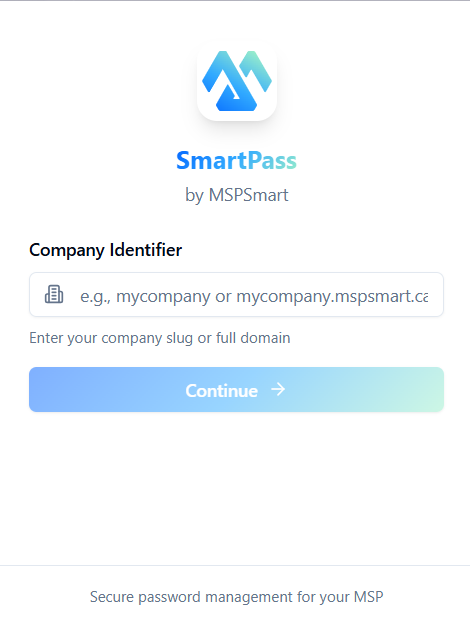
Login screen — Enter your company slug or domain to connect.
Once connected, your SmartDoc credentials are used to authenticate the session.
PIN Lock
After logging in, SmartPass lets you set up a 6-digit PIN code to protect access to your credentials. This PIN is required each time you open the extension, providing an extra layer of security without re-entering your full credentials.
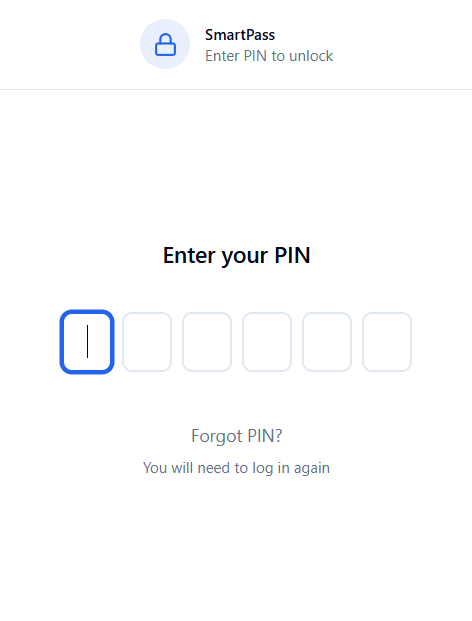
Lock screen — Enter your 6-digit PIN to unlock the extension.
If you forget your PIN, click Forgot PIN? to log out and restart the login process.
Features
Quick Credential Access
- Instant search — Find a password by typing the client or service name
- One-click copy — Copy username or password to clipboard
- Secure reveal — Temporarily display a password with automatic masking
- Company filtering — Quickly switch between clients
Security
- AES-256 encryption — All credentials are encrypted end-to-end
- PIN lock — Unlock the extension with a personal PIN code
- Biometric support — Use fingerprint if your device supports it
- Auto-logout — Session expires after inactivity
- MFA authentication — TOTP and backup code support
Password Generator
SmartPass includes a built-in password generator right inside the extension. Use it to create strong, random passwords without leaving your browser.
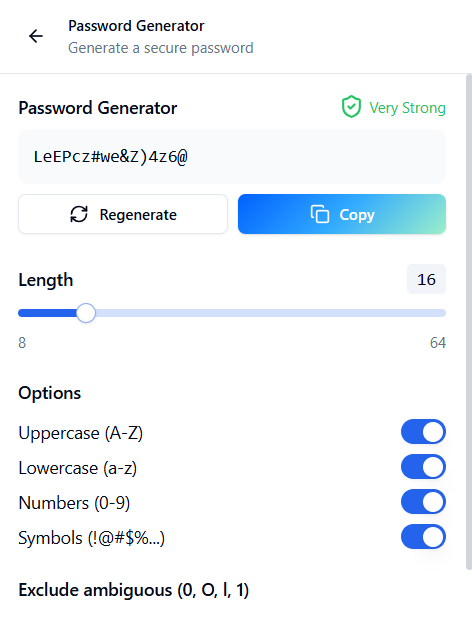
Password generator — Configure the length (8–64 characters) and the types of characters to include.
Available options:
| Option | Description |
|---|---|
| Length | Adjustable slider from 8 to 64 characters |
| Uppercase (A-Z) | Include uppercase letters |
| Lowercase (a-z) | Include lowercase letters |
| Numbers (0-9) | Include digits |
| Symbols (!@#$%...) | Include special characters |
| Exclude ambiguous | Remove similar-looking characters (0, O, l, 1) to avoid confusion |
A strength indicator (Very Strong, Strong, Medium, Weak) helps you evaluate the generated password's robustness. Click Copy to copy directly or Regenerate to generate a new one.
Dark Theme
SmartPass supports a dark theme for optimal visual comfort, especially during late-night interventions or in low-light environments. Toggle the theme from the extension settings.
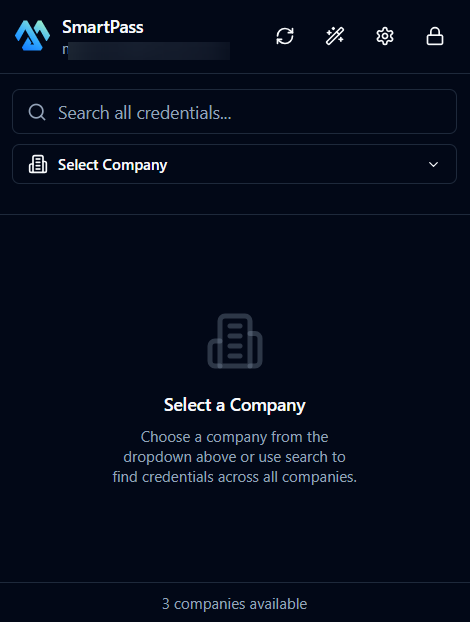
Dark theme — Full dark interface, ideal for reducing eye strain.
Bilingual Interface
- French and English
- Switch language directly in extension settings
Daily Usage
Search for Credentials
- Click the SmartPass icon in the toolbar
- Unlock with your PIN (if enabled)
- Type the client or service name in the search bar
- Results appear in real-time
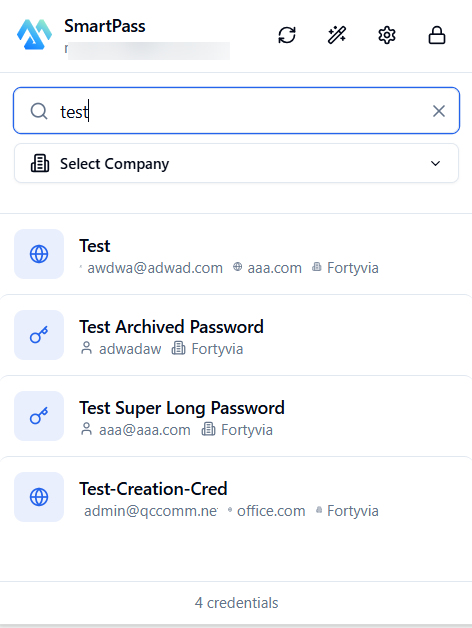
Credential search — Type a keyword to instantly filter your passwords. The result count is displayed at the bottom.
Each result shows:
- The name of the credential (e.g., "Test", "Test Archived Password")
- The username or associated email address
- The website linked to the credential
- The company the credential belongs to
Favorites and Recent
SmartPass lets you mark credentials as favorites for even faster access. The Favorites and Recent tabs at the top of the list let you filter your most-used or recently viewed credentials. A favorited credential is identified by a gold star.
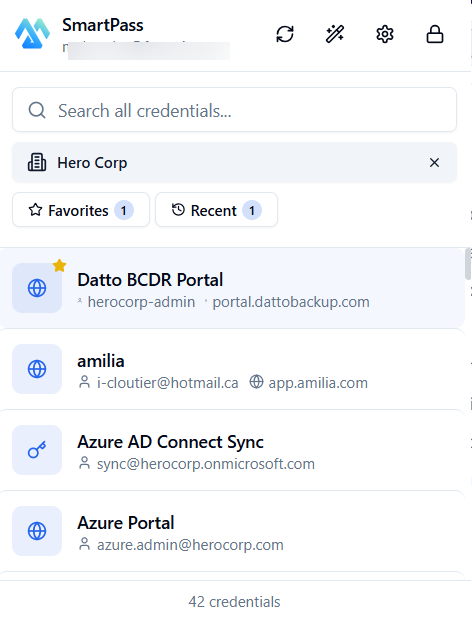
Favorites and recent — Quickly access your most-used credentials with filtering tabs.
Copy a Password
- Find the desired credential
- Click the credential to open its details
- Click the copy icon next to the username or password
- A visual indicator confirms the copy
Switch Companies
Use the Select Company dropdown at the top of the extension to filter credentials by client. This lets you see only the passwords for the client you're currently working on.
Toolbar
The toolbar at the top of the extension provides quick access to:
| Icon | Function |
|---|---|
| Refresh | Resync credentials from SmartDoc |
| Generator | Open the password generator |
| Settings | Configure language, PIN, and preferences |
| Lock | Manually lock the extension |
Required Permissions
SmartPass only requires minimal permissions:
| Permission | Reason |
|---|---|
| Storage | Save preferences and encrypted cache |
| Clipboard | Copy credentials |
| mspsmart.ca domain | Communicate with the SmartDoc API |
The extension does not read your web pages, does not access your browsing history, and does not collect any browsing data.
Troubleshooting
| Issue | Solution |
|---|---|
| Extension disconnected | Log back in with your SmartDoc credentials |
| No search results | Check that you're on the right company |
| Forgot PIN | Log out and log back in to reset |
| Extension won't load | Disable and re-enable in chrome://extensions |
| Outdated credentials | Use the refresh button to resync |